Picklist Options in Filter Conditions
When you filter a list of records, each filter condition has three parts: a field, a condition and a value. When the field is a picklist — a field with a fixed list of options — you pick the value from that list.
An administrator can attach a rule to an individual option to control who sees it. This page explains which of those rules show or hide an option in that value list, and which cannot be applied there.
The short answer: rules about you or your roles are applied, so an option can be hidden. Rules about the record are not applied, so those options are always shown.
The three contexts at a glance
Every condition in a rule starts by choosing a context — what the condition looks at. The context decides whether the rule can be applied in a filter condition. For how rules and conditions are built, see the Rules Configuration Guide.
| Context | The condition looks at | In a filter condition | Example |
|---|---|---|---|
| User.Roles | The roles of the signed-in user | Applied — the option is hidden if the rule is not met | Example 1 |
| User | A detail of the signed-in user, such as their department | Applied when compared with a fixed value | Example 2 |
| Instance | The record itself | Not applied — the option is always shown | Example 3 |
One exception inside the User context: if the condition compares your detail against a field on the record, it needs a record too, so it is not applied and the option stays in the list — see Example 4.
Why record-based rules cannot be applied in a filter
A form is filled in for one record, so a rule about that record can be answered — the record is right there. A filter condition is a question asked across many records, so there is no single record to look at.
Rather than remove a value you may need to search by, the option is left in the list.
Examples
Example 1: A rule about your roles
Set-up: the option is visible only if the signed-in user's roles contain Candidate. Context User.Roles, no record involved.
In a filter condition: applied. A user without that role is not offered the option, exactly as on the form.
Example 2: A rule about your own details
Set-up: the option is visible only if the signed-in user's department is Sales. Context User, compared with a fixed value, so again no record is involved.
In a filter condition: applied. A user from another department is not offered the option.
Example 3: A rule about the record
Set-up: the option is visible only on records whose name contains urgent. Context Instance.

In a filter condition: not applied, so the option is still offered. A search spans many records, so there is no single name to look at.
Example 4: A rule that mixes you and the record
Set-up: the option is visible only if one of the signed-in user's details matches a field on the record — here the user's Creator must equal the record's Creator. The context is User, but the value it compares against comes from the record.

In a filter condition: not applied, so the option is still offered. The condition needs a record, even though it starts from the user.
Example 5: A rule that combines contexts
Set-up: one rule with two conditions — a role condition and a record condition.
In a filter condition: the role condition is applied and the record condition is ignored. So the option can still be hidden, if the role condition alone rules it out.
A real use case
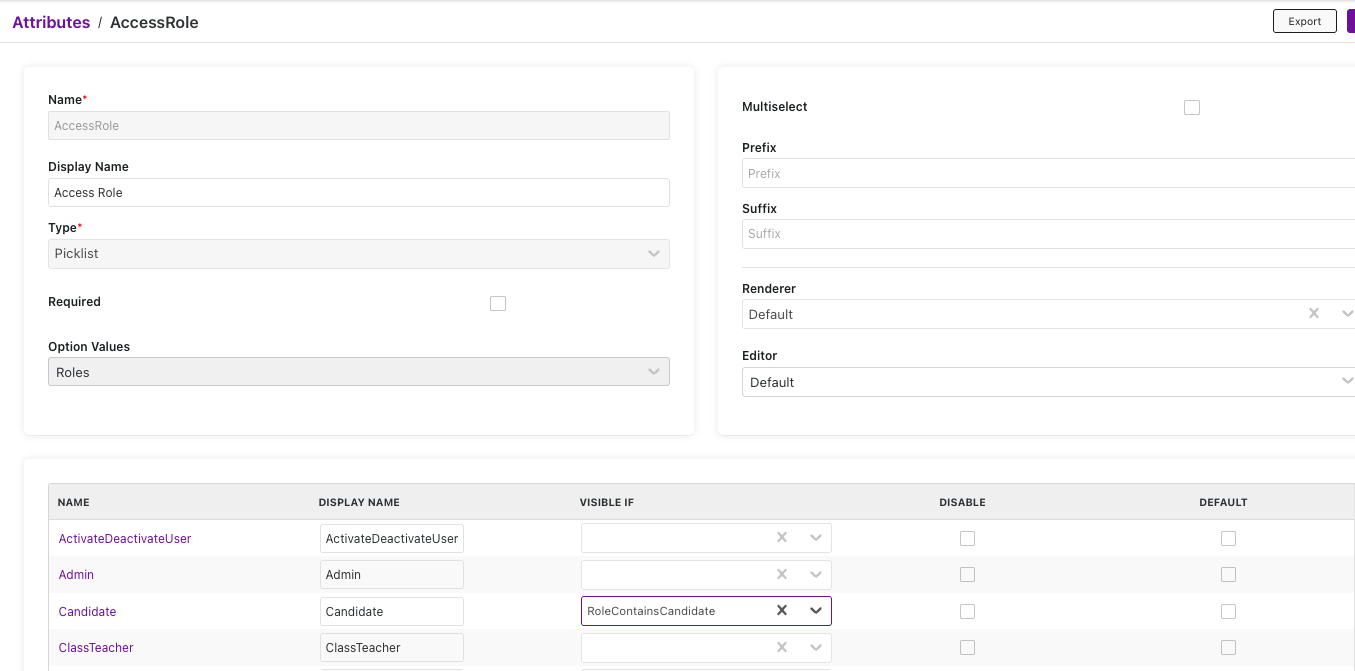
Records in a recruitment application carry an Access Role field. It is a picklist whose options come from the application's roles — Admin, Candidate, Class Teacher and so on.
A rule is created once under Rules and then chosen for an option in the Visible If column. Below, the Candidate option uses a rule named RoleContainsCandidate, which checks that the signed-in user's roles contain Candidate. The other options have no rule, so everyone is offered them:
Step 1 — a user without the Candidate role opens the form. Candidate is not offered; the rule is about their roles, and it is not met.
Step 2 — the same user adds a filter condition on Access Role. Candidate is not in the value list either. This is the behavior that changed: the value list now matches the form for role-based rules.
Step 3 — a user with the Candidate role. Candidate is offered both on the form and in the value list.
Step 4 — Class Teacher is also given a rule, this time about the record, such as the record's category being Academic. On the form the option appears only while the record's category is Academic. In a filter condition it is always offered, because a search has no single category to look at — and the user may well need to find the records that already use that value.
Options that are always shown
A value already applied in the filter, and a value an administrator has fixed on the filter, stay in the list even if their rule is not met, so a filter condition never comes up blank.
The same applies to a rule that is incomplete and cannot be worked out: the option is left in the list rather than removed.
Good to know
- An option an administrator has switched off can still be used in a filter condition, so older records that already use it remain findable.
- These rules decide what you can choose, not what you are allowed to see. A record using an option you cannot choose can still appear in your results.