Exporting Your Schema
From the Export Schema page
Go to Settings → Export Schema. Select the parts of your configuration you want to include (Layouts, Attributes, Types, and so on), then use the Export button.
The dropdown arrow next to Export gives you a second option, Export As Bundle, for exporting Programs and Custom Widgets as a compiled package instead of plain source. See Two ways to export if you're not sure which one you need.

Once you click either option, the export runs in the background rather than making you wait on the page.
Exporting a single schema element
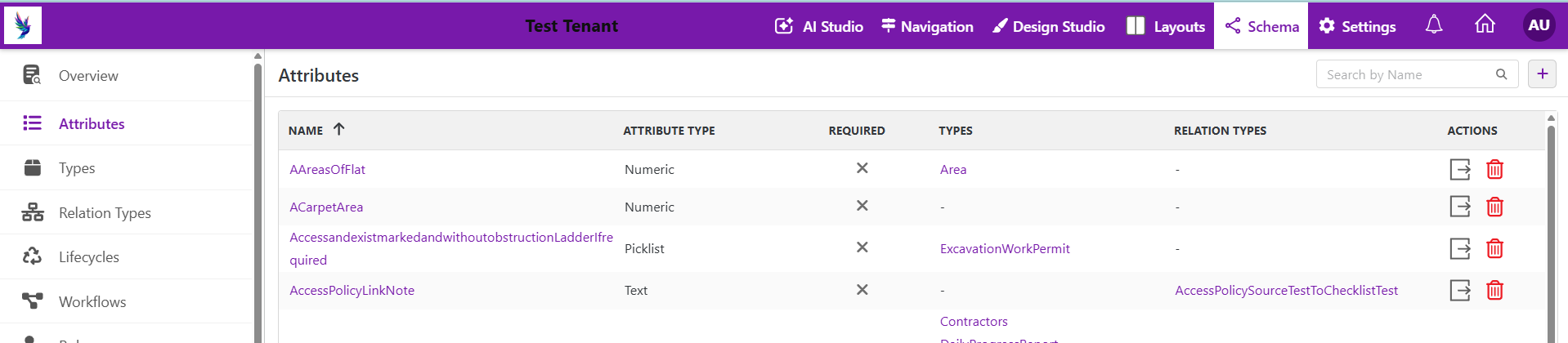
You don't have to go through the Export Schema page to export just one item. Every schema grid under Schema in the top navigation (Attributes, Types, Relation Types, Programs, Widgets, and so on) lets you export a single item two ways:
-
From the grid: each row has an Export icon in the Actions column, so you can export that one item without opening it.
-
From the item's own page: opening any element also shows an Export button on its page.

For most element types, Export is the only option, since there's nothing to bundle (bundling only applies to the compiled version of a Program or Custom Widget). Programs and Custom Widgets are the only two element types where you'll also see the Export As Bundle option, right next to Export:


Tracking export status
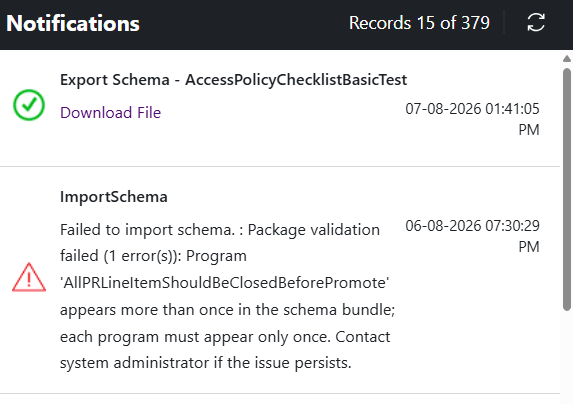
However you started it, every export runs in the background. There are two places to check whether it's still in progress or has completed:
- The notification panel (the bell icon in the top navigation) shows each export as it completes, with a Download File link. Imports show up in the same panel, so don't be surprised to see both mixed together.
- The History tab on the Export Schema page lists every export you've run, its status, and a download link once it's done.
What's inside a bundle package
A bundle export (.zip) contains one entry per Program or Widget you
exported, plus a single file describing your schema. You never need to open or
edit these files by hand; they're built to be imported straight back into
another tenant. Still, it can help to know what's in there:
ExportedSchemaPackage.zip
├─ schema.json          — describes the Programs/Widgets in this package
├─ Programs/
│    └─ (one file per exported Program — the compiled, ready-to-run version)
└─ Widgets/
     └─ (one file per exported Custom Widget — the compiled, ready-to-run version)
The files under Programs/ and Widgets/ are named with an internal
identifier rather than the Program/Widget's name. You can ignore this: it's
just how Protrak keeps track of which file belongs to which item.
Size limits
Every request to Protrak, including exports, has to fit within your
deployment's overall request-size limit, which your system administrator
configures. In addition, a bundle package (.zip) has its own, smaller
default limit of 25 MB, since it's meant for moving individual Programs
and Widgets rather than a whole schema.
Your system administrator can raise or lower this 25 MB bundle limit. If your bundle export is too large:
- Export fewer Programs/Widgets at a time,
- Use Full Export instead, if you also need the source code, or
- Ask your system administrator to increase the configured bundle size limit.