Importing a Schema
How to import
Go to Settings → Import Schema. Click Select and choose the file you
exported earlier: either a .json file (Full Export) or a .zip file
(bundle export). Both are accepted from the same file picker.
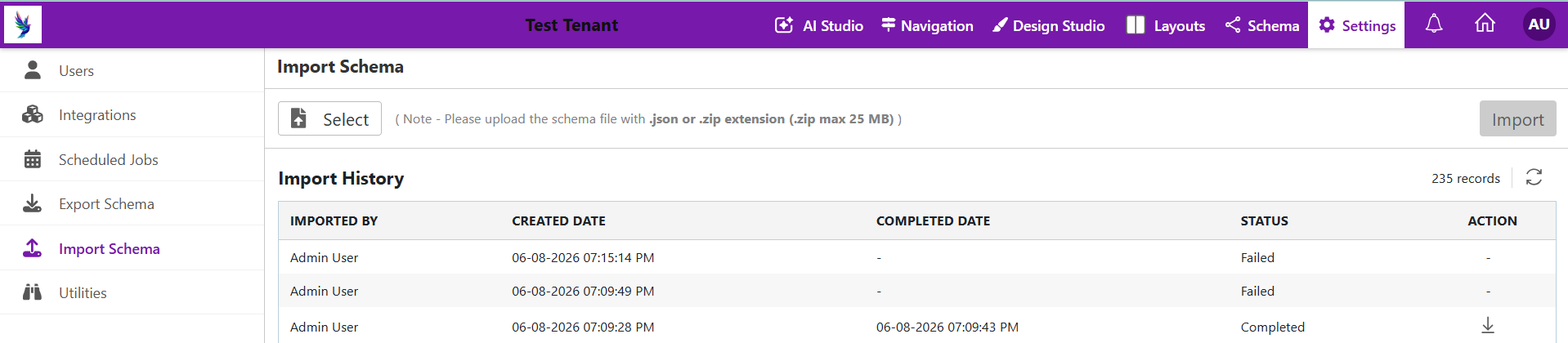
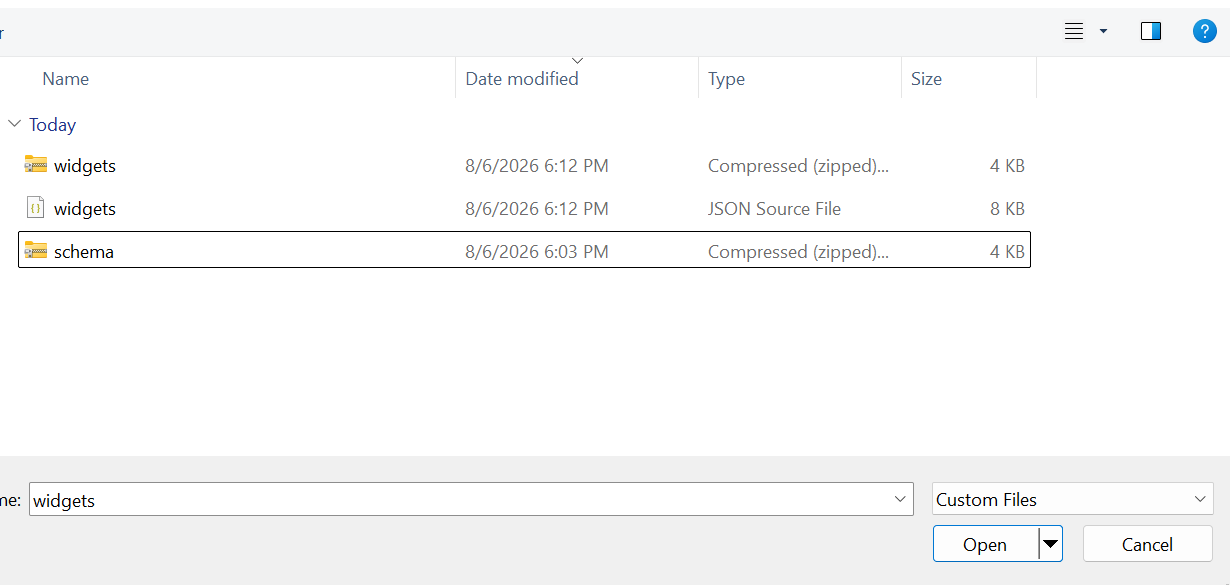
Once you've selected your file, click Import. Like exports, an import runs in the background rather than making you wait on the page.
Tracking import status
There are two places to check whether your import is still in progress or has completed, the same two places as for exports:
- The notification panel (the bell icon in the top navigation).
- The Import History table on the Import Schema page.
Reading the result
Every import shows up as a notification, and as a row in Import History. A green check means it completed successfully; a red warning means it failed.
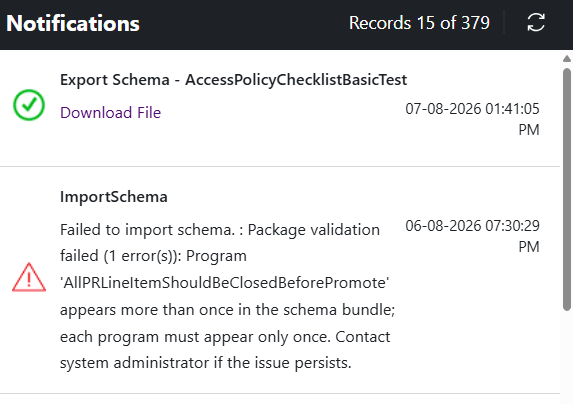
When an import fails, the notification tells you exactly what went wrong: for example, which Program or Widget had a problem, and why. Usually you won't need to dig any further to fix it and try again.
Common reasons an import fails
General (any import)
- The file isn't a valid export. The file is corrupted, was edited by hand, or isn't a Protrak schema export at all. Re-export a fresh copy and try again.
- The file is larger than your deployment allows. Every request to Protrak, not just imports, has to fit within a request-size limit that your system administrator configures. Try a smaller export, or ask your system administrator about the configured limit.
- The upload was interrupted. A network hiccup during upload can leave you with a partial file. Simply retry the import.
Specific to bundle (.zip) imports
-
A name is used twice. The same Program or Widget name appears more than once in the file you're importing. Remove the duplicate and re-export, or edit the file to rename one of them.
-
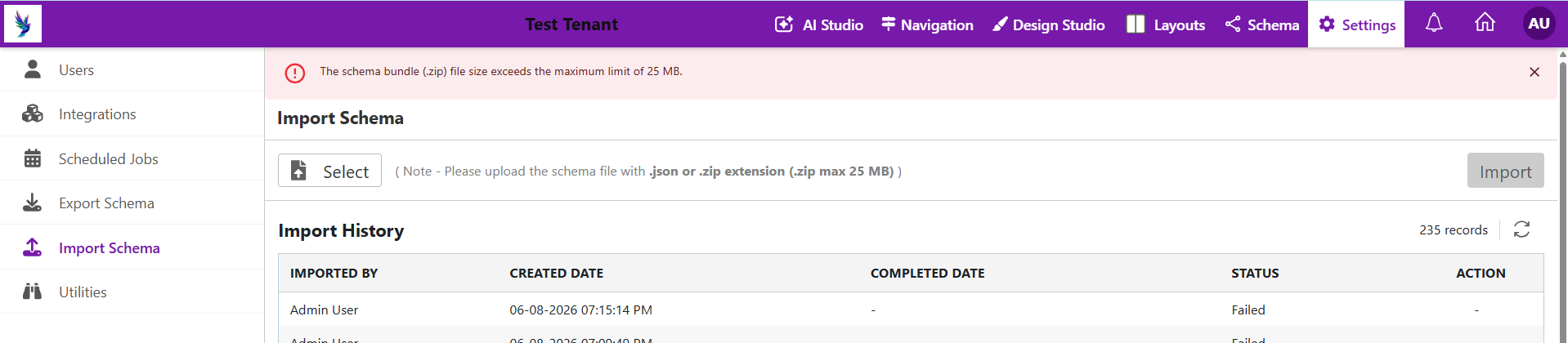
The bundle is too large. A bundle import has its own default limit of 25 MB, separate from the general request-size limit above. Export fewer items, use a Full Export instead, or ask your system administrator to raise the configured bundle size limit.
-
Something needed is missing. A Program or Widget in the file didn't include either its source code or its compiled version. One of the two is required, so re-export the item and try again.
If you run into a failure message that isn't covered here, or the same import keeps failing after you've tried the steps above, see Error Messages & Troubleshooting or contact Protrak Support.