Query Builder Configuration Guide
This page walks through creating and maintaining a Query Definition in Design Studio: the basic details, query parameters, filters, execution settings, how queries are used by widgets and reference attributes, how to move them between environments, and how to troubleshoot them.
Before creating a query, make sure that:
- The associated type and its attributes already exist.
- Any relation types and lifecycle states the query will use already exist.
- You know which widget, report, reference attribute, or integration will use the query.
Create a Query Definition
- Open Schema, then Query Builder in the left menu, and select + at the top right of the list.
- Enter the basic details.
- Add query parameters, if the query needs runtime values.
- Configure the filters, the attributes to return, and the execution settings.
- Save the definition and validate the results with the consuming widget.
Basic details
| Field | Description | Required |
|---|---|---|
| Name | Unique system identifier. Keep it stable: other schema elements refer to it. | Yes |
| Display Name | User-friendly name. | No |
| Associated Type | The Protrak type the query runs against. | Yes |
| Query Type | Instance Query, Relation Query, or Structured Query. | Yes |
| Description | The business purpose, where parameter values come from, and which widgets use the query. | No |
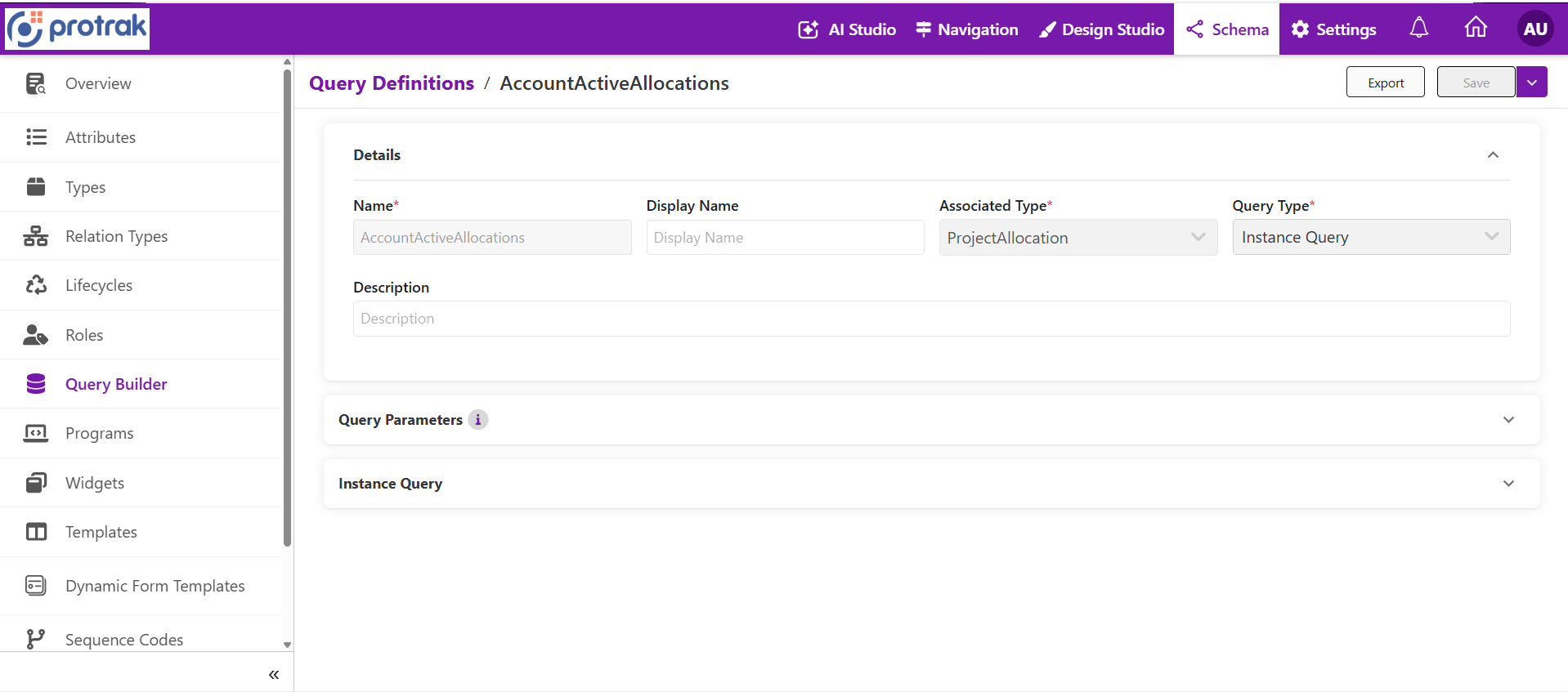 The Query Definition editor: Details (Name, Display Name, Associated Type, Query Type, Description) with collapsible Query Parameters and Instance Query sections. The toolbar has Export and Save (with a drop-down).
In an existing query the Name is shown read-only.
Use a stable technical name such as OpenProjectTasksByOwner and a descriptive display name such as "Open Project Tasks by Owner". Avoid environment names, ticket numbers, and personal names in reusable queries.
Query parameters
Query parameters are named placeholders whose values are resolved when the query runs. One query can then serve many contexts: for example, a single "Open Tasks by Project" query can accept a project and an owner.
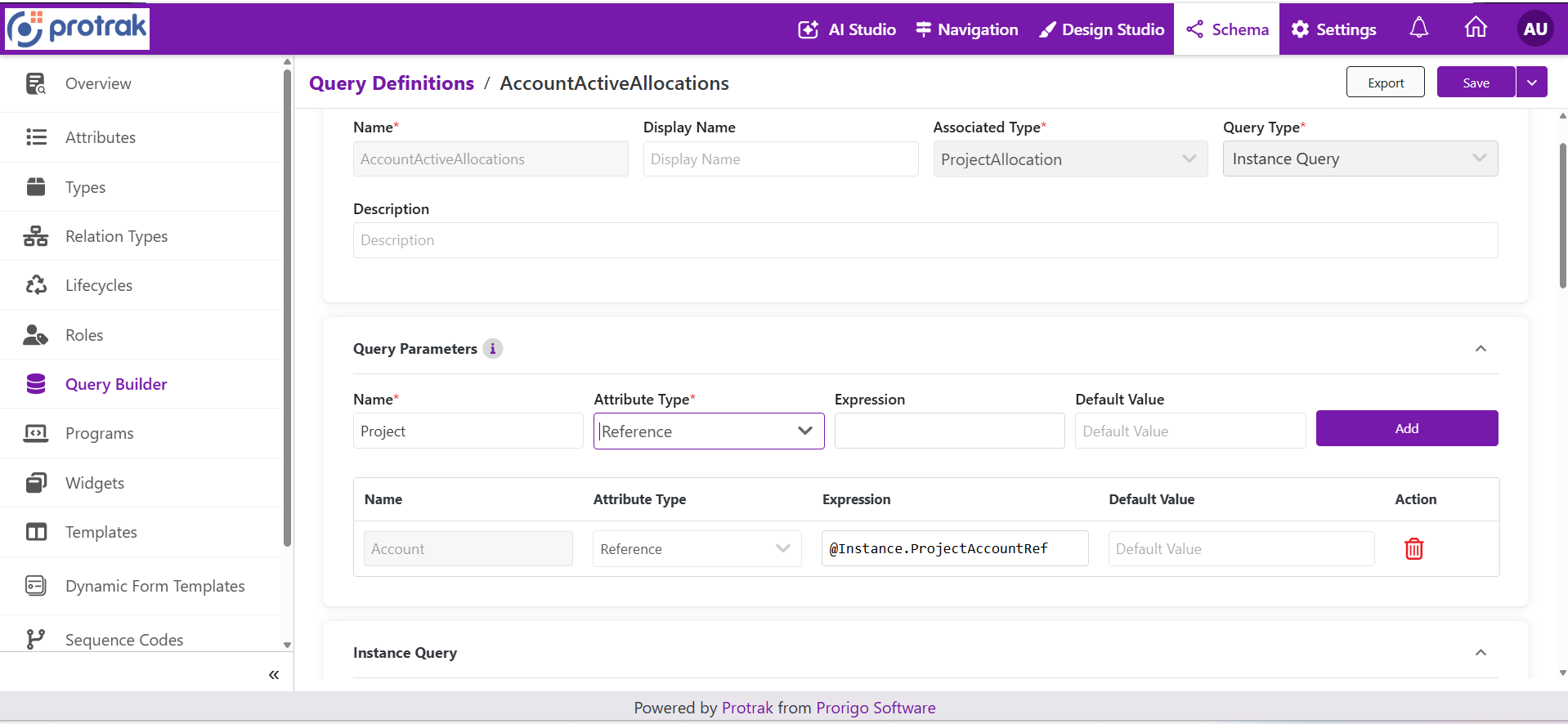 Query Parameters: Name, Attribute Type, Expression, and Default Value. The parameter
Account is a Reference whose expression is @Instance.ProjectAccountRef.
| Property | Description |
|---|---|
| Name | Unique identifier of the parameter (for example Project). |
| Attribute Type | The data type of the parameter's value. Select it before entering an expression. |
| Expression | Optional runtime formula that provides the value, for example a value taken from the current instance (@Instance.AttributeName) or the current user (@User.AttributeName). |
| Default Value | Fallback value used when no value is supplied. |
For the complete reference (expressions, resolution order, value formats per type, and use in widgets, reference attributes, and the API), see Query Parameters.
Rules
- Parameter names must be unique.
- An expression, when entered, must be valid.
- Expressions take priority over default values when they resolve.
- Define a parameter before using it in a filter.
- The parameter's data type is derived from its expression when the query is saved.
- A parameter used by a parent filter must resolve to a reference (an instance), because a parent filter selects instances.
- A parameter used by a User, Date, or DateTime attribute condition must have the same type as that attribute. For a Numeric attribute, a Text, Numeric, or Currency parameter is accepted. Other attribute types are not restricted.
- Parameter names and types are part of the query's contract. Renaming or retyping a parameter can break widgets, API clients, and schema packages that already supply values.
- When a dynamic attribute condition resolves to a blank value, that condition is ignored instead of failing the query.
- Parameters supply values; they are not a security boundary. Returned records are always governed by the caller's permissions.
Instance Query configuration
An Instance Query returns records of the associated type. It combines filtering, sorting, paging, and execution options.
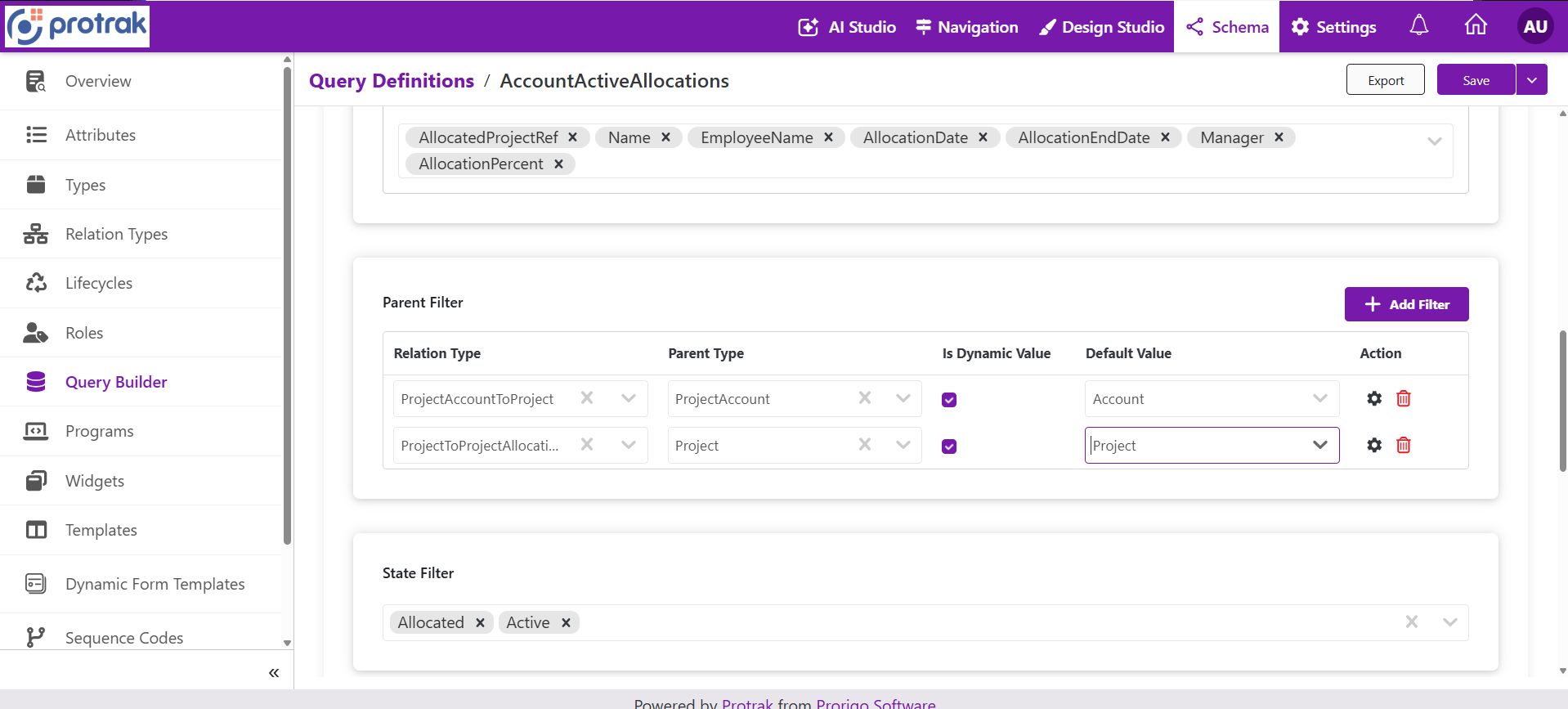 Instance Query configuration: Select Attributes (a specific list), Parent Filter (two filters), and State Filter (Allocated, Active).
Select Attributes
Controls which attributes the query returns, and therefore which attributes are available in the Column Designer.
| Option | Effect |
|---|---|
| All | Every attribute of the type is returned and available as a column. |
| Specific | Only the listed attributes are returned. |
Choose Specific to restrict the columns an administrator can add to a widget and to keep responses small.
Parent Filter
Restricts instances by the parent or related instances they are connected to. Typical uses are tasks under a project, documents under an asset, or contacts under an account.
| Column | Description |
|---|---|
| Relation Type | The relation type to evaluate. |
| Parent Type | The type of the parent instance. |
| Is Dynamic Value | When selected, the parent is resolved at runtime from a query parameter or the page context (for example the current instance). When cleared, the fixed value in Default Value is used. |
| Default Value | The parent scope used when the value is static, or as the fallback when it is dynamic. In the screenshot above, the dynamic filters use the query parameters Account and Project. |
| Action | The gear icon expands the row to set a State Filter and an Attribute Filter on that parent type. The bin icon removes the filter. |
You can add several parent filters. They are applied in order as a chain (the first is the topmost ancestor and the last is the direct parent of the returned instances), not as independent conditions. A query accepts at most 20 parent filters by default (the limit is configurable per environment). See Parent filters in detail.
Example from the screenshot: the query returns ProjectAllocation records and has two dynamic parent filters. The first uses relation ProjectAccountToProject with parent type ProjectAccount (parameter Account); the second uses relation ProjectToProjectAllocation with parent type Project (parameter Project). Read top to bottom, the chain is ProjectAccount, then Project, then ProjectAllocation: the query returns the allocations of the given project(s) that sit under the given account. The state filter below it limits the allocations to the states Allocated and Active.
State Filter
Restricts instances to selected lifecycle states.
- Select one or more states. A record matches when it is in any selected state.
- Leave the filter empty to include all states.
- State names are used, not display names.
Attribute Filter
Filters instances by attribute values using a rule builder. Each row is made of an attribute, an operator, a static or dynamic switch, and a value.
| Part | Description |
|---|---|
| Attribute | The type attribute (or built-in attribute such as Name, Created, State) to filter on. |
| Operator | The comparison. The operators available depend on the attribute type (see the table below). |
| Dynamic switch | When on, the value is taken from a query parameter. When off, the value is entered directly. |
| Value | The fixed value, or the parameter to use when dynamic. |
Operators by attribute type:
| Attribute type | Typical operators |
|---|---|
| Text | equals, not equals, contains, not contains, starts with, ends with, in, not in, is empty, is not empty |
| Numeric, Currency | equals, not equals, greater than, greater than or equal, less than, less than or equal, between, in, not in, is empty, is not empty |
| Date, DateTime | equals, comparisons, between, today, last week/month/year, next week/month/year, is empty, is not empty |
| Picklist | equals, not equals, contains, not contains, is empty, is not empty |
| User | equals, not equals, current user, contains, is empty, is not empty |
| Reference | equals, not equals, contains, in, not in, is empty, is not empty |
| Boolean | equals, not equals (true or false) |
Combining conditions
- Rows inside one group are combined with the connector you pick between them: AND (all must match) or OR (any may match).
- Select + Add Group to add another group. Groups are combined with AND or OR as well.
- Select Clear All to remove all attribute filters.
- Keep groups small and describe the intended business rule in the query description.
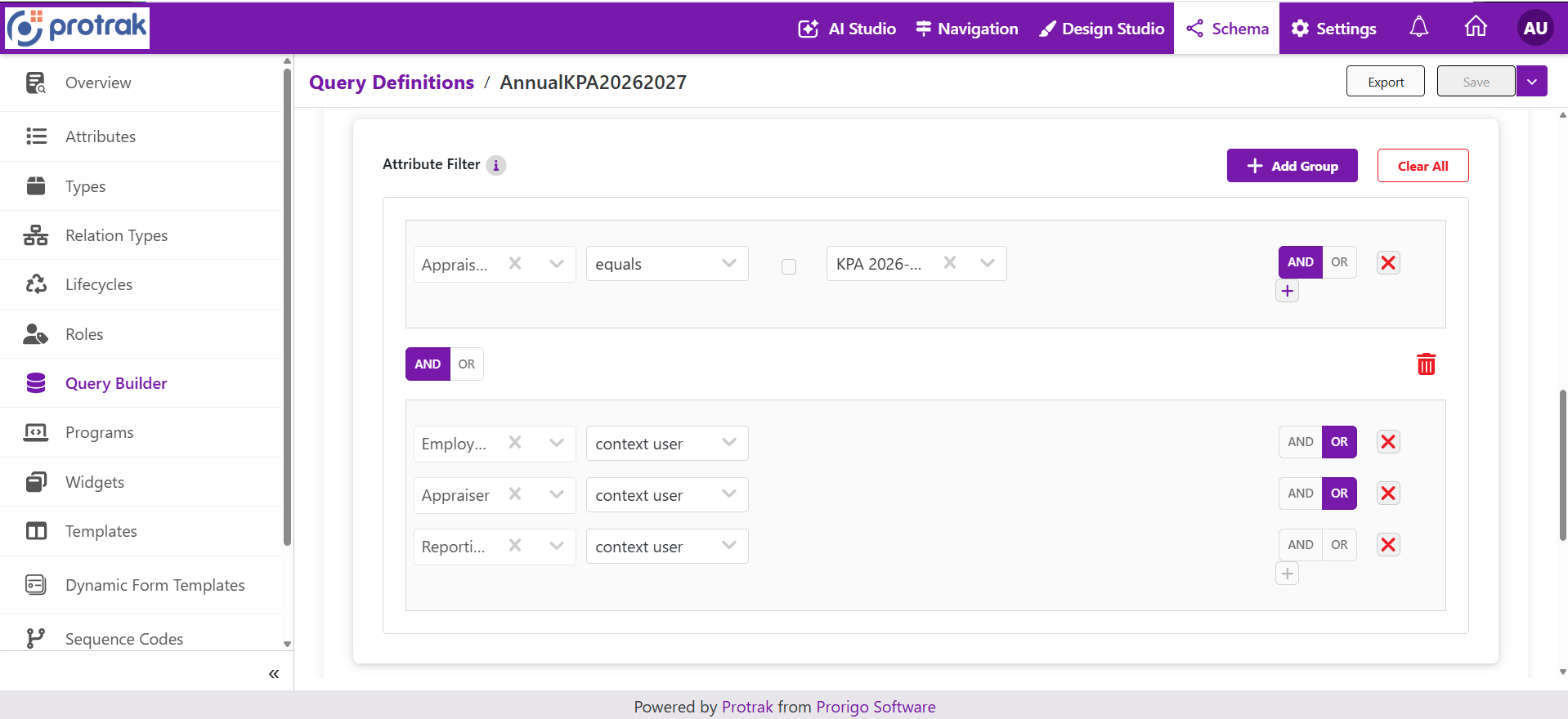 Attribute Filter with two groups. The first group has one condition (
equals). The second group has three context user conditions joined with OR. The two groups are joined with AND.
In each row, the checkbox switches the value between static and dynamic, the x removes the row, and the small + adds a row to the group. The AND / OR switch on a row joins it to the next row; the switch between two groups joins the groups, and the bin icon removes a group.
Example:
(Priority = High OR Priority = Critical) AND Due Date < Today.
Avoid mixing AND and OR between three or more groups. Put mixed logic inside a single group with one connector, or use two queries. See Filter Values and Logic for the exact evaluation rules.
For the exact value format of every operator (for example, how to enter a list for in), see Filter Values and Logic.
Static and dynamic values
| Style | Use when | Example | Consideration |
|---|---|---|---|
| Static | The value is stable for every execution. | State is Open. | Simple, but the query must be edited to change the value. |
| Dynamic | The value depends on the user or context. | Owner is the current user. | Reusable, but the caller must supply a valid value. |
| Parameter with a default | A standard value that callers may override. | Region defaults to North. | Balances consistency and flexibility. |
| Explicit instance list | A known set of related records is needed. | Selected portfolio IDs. | Review list size and maintainability. |
Dynamic relation values resolve to one or more instance identifiers. The runtime value must be a valid identifier (several identifiers are separated by commas); a missing or invalid value can cause the filter to return no records or the query to fail validation.
Data options
| Option | Description | Default in the screen |
|---|---|---|
| Skip | Number of instances to skip (offset for paging). | 0 |
| Take | Maximum number of instances to return. | 500 |
| Sort By | Attribute used for the default sort order. | None |
| Is Sort By Descending | Sort direction. | Off |
| Only Actionable Instances | Return only instances on which the user has an applicable lifecycle action. | Off |
| Get Allowed Operations | Include the operations the user may perform on each instance. | Off |
| Get Allowed Actions | Include the actions the user may trigger on each instance. | Off |
| Get Data From DB | Read directly from the database instead of the search index, for immediate freshness. | Off |
| Include Total Count | Return the total number of matching instances (needed for paging controls). | On |
The defaults above are the values shown in the Design Studio screen. A request sent directly to the Query Builder API uses its own defaults (for example take is 100).
Do not enable expensive options by default. Total count can require extra work on large result sets, and forced database reads reduce the benefit of the search index. Use paging, a deterministic sort order, and only the attributes you need.
Relation Query configuration
A Relation Query is used by Relation widgets. It defines the relationship path from the current instance to the related instances, and the criteria applied along that path.
Relation Filter (required)
At least one relation filter is required. Each filter is one step of the path. Select + Add Filter to add a step.
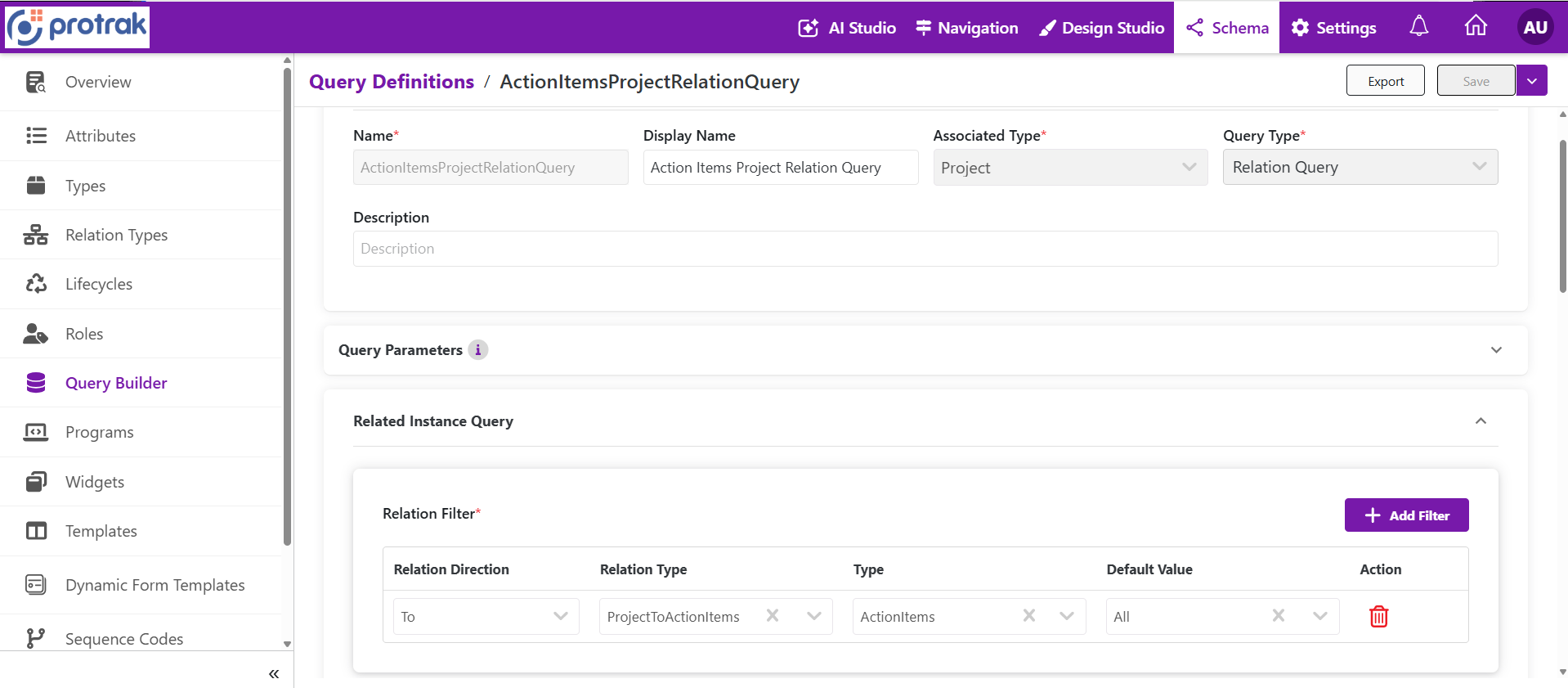 A Relation Query for the type
Project. The Related Instance Query section has one Relation Filter: direction To, relation type ProjectToActionItems, type ActionItems, default value All.
| Column | Description |
|---|---|
| Relation Direction | To follows the relation from the current instance to the related instances; From follows it from the related instances back to the current instance. |
| Relation Type | The relation type defined on the type (for example ProjectToTask). |
| Type | The type of the instances at this step. The last filter defines the type that is returned. |
| Default Value | A specific instance (or all) to pin this step to. |
| State and attribute filters | Optional criteria applied to the instances at this step. |
Select + Add Filter to add further steps for multi-hop paths. Example: to show documents of a project, follow Project to Deliverable, then Deliverable to Document. Each step can add state or attribute criteria so that unrelated records do not enter the result.
How directions work, including multi-step paths and recursion, is described in Relations, Nesting, and Recursion.
Select Attributes and Select Relation Attributes
| Setting | Controls |
|---|---|
| Select Attributes | Which attributes of the related type are returned and available as columns (All or Specific). |
| Select Relation Attributes | Which attributes stored on the relation itself are returned and available as columns (All or Specific). Leave as All if relation metadata is not needed. |
State Filter and Attribute Filter
Work as in an Instance Query and apply to the related instances.
Structured Query
A Structured Query returns instances together with nested related instances. It is defined by an instance query plus a tree of related-instance queries; every level is validated when the query is saved. It is available only where your environment provides it. Use it when one result must carry related records several levels deep; otherwise prefer an Instance or Relation Query.
How a query drives the Column Designer
The query determines which columns the Column Designer offers for a Type Widget.
| Query state | Columns available in the Column Designer |
|---|---|
| No query | All type attributes |
| Query with All attributes | All type attributes (and the query's filters apply) |
| Query with Specific attributes | Only the listed attributes |
| Relation Query | Related type attributes plus relation attributes |
- No query: the widget fetches all instances of the type. Best for quick "show everything" views.
- Query, All attributes: the query still applies its filters, but every column stays available.
- Query, Specific attributes: only the listed attributes are fetched; the others are locked out on purpose.
- Relation Query: shows related records inside a View template, for example all diary records linked to an instance. Relation attributes appear as an additional set of columns.
Columns define presentation and projection; filters define which records qualify. Configure the query before creating the widget so the Column Designer is populated correctly. See Type Widgets.
Use a query in a widget or reference attribute
Saved queries are selected when configuring Type Widgets and reference attributes.
| Widget | How the query is used |
|---|---|
| Dashboard widget | Optional or required depending on filtering and column needs; cards, lists, charts, grids. |
| Report widget | The query is the report dataset and column contract. |
| Versions widget | Query tab, same as a report widget. |
| Relation widget | Requires a Relation Query. |
| Reference attribute | An Instance Query limits the choices; with a parent filter the attribute becomes dependent on another field. |
Integration checklist:
- The widget's associated type matches the type the query returns.
- All required query parameters are mapped.
- Empty, single-result, multi-result, and high-volume cases are tested.
- The intended roles can see both the widget and the returned records.
- Sort order, paging, total count, actions, and exports are tested where enabled.
Manage Query Definitions
The Query Definitions list shows every query of the environment.
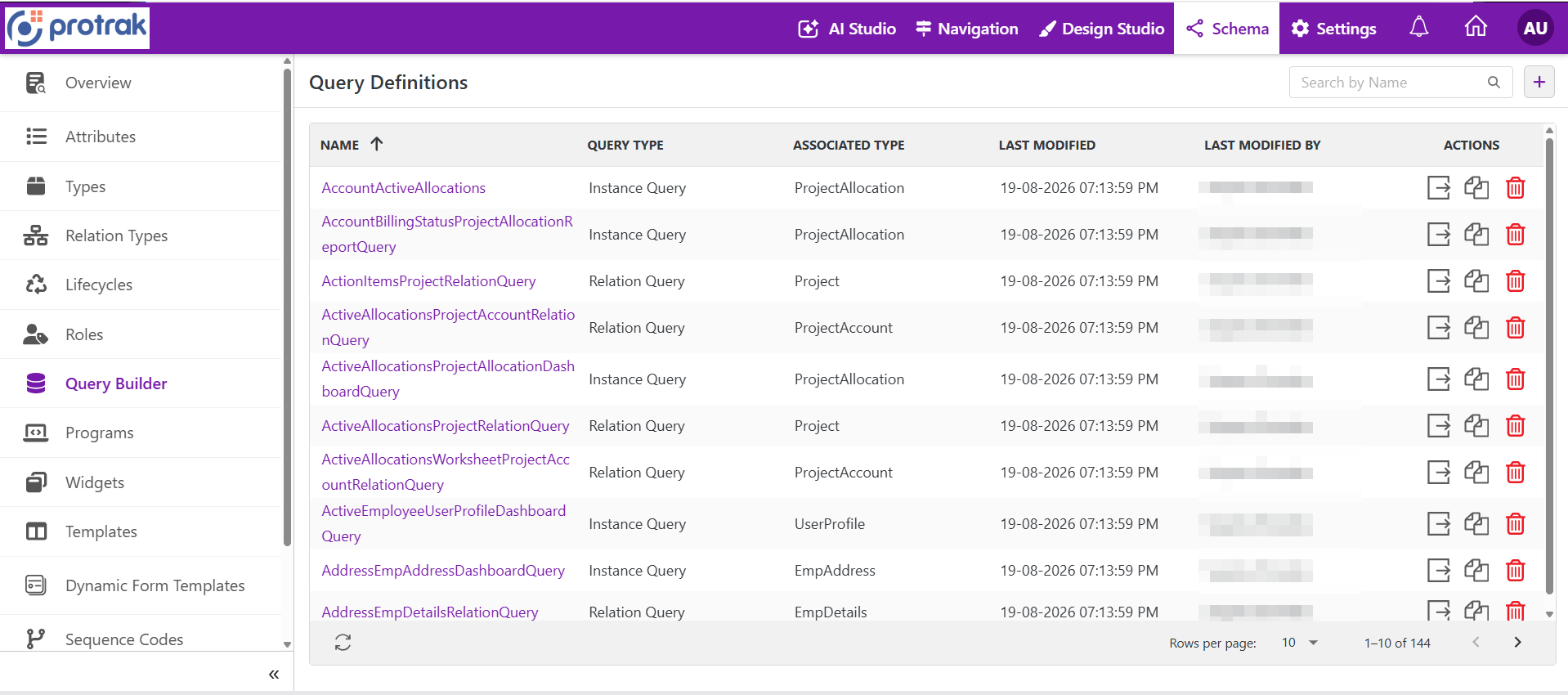 The Query Definitions list (Schema, then Query Builder).
| Column or control | Purpose |
|---|---|
| Search by Name | Find a query by its name. |
| + (top right) | Open the empty editor to add a query. |
| Name | The query name. It is a link that opens the query. The list is sorted by name. |
| Query Type | Instance Query, Relation Query, or Structured Query. |
| Associated Type | The type the query runs against. |
| Last Modified, Last Modified By | When and by whom the query was last changed. |
| Actions | Export, Create copy, and Delete icons, in that order. |
| Rows per page and the page arrows | Page through the list. |
In the editor:
- Save has a drop-down with Save As, which saves a copy of the query under a new name. Use it to start a variant of an existing query. Create copy in the list makes a copy directly from the list.
- Export exports the query definition as a schema element, the same export used to move queries between environments. It is also available from the list.
- The sections Details, Query Parameters, and the query section (Instance Query, Related Instance Query, or Query Definition for a Structured Query) can each be collapsed.
- Deleting asks for confirmation ("Are you sure you want to delete the Query Definition ...") and is blocked while the query is in use (see Delete and dependencies).
The same operations are available through the API: see Query Definitions Admin API.
Structured Query designer
For a Structured Query, the Query Definition section is a tree.
- The root node is the main instance query for the associated type.
- Select Add Related Instance Query to add a child node. A child node is a related-instance query: it has its own relation filter path, state and attribute filters, attributes, sorting, and paging.
- A child can have its own children, so the tree can go several levels deep (for example Project, then Task, then Sub-task).
- Select a node to edit it; use the delete icon to remove a node and its children (a confirmation is shown).
- Before adding another relation filter to a node, select the relation type of the last filter. If the type has no child relation types, a message says so and no relation can be added.
The tree is stored as a main query plus nested related queries, the same shape that the Query Builder API accepts. Each node is validated when the query is saved: every node needs a relation path (relation type and target type), and the parameter rules apply at every level.
Reports and widgets
Report widgets use a saved Instance Query as the report dataset. Reports that run in the background carry the query with them, so the query's filters, sorting, and attributes apply to the generated report, and the report respects the same user permissions. Keep the attributes of a report query explicit (Specific) so that report columns stay stable. See Reports.
Delete and dependencies
A query can be referenced by reference attributes, Type Widgets, reports, and other schema elements.
- A query cannot be deleted while it is used by an attribute or a Type Widget. The message names the dependents; remove or replace them first.
- A parent filter that backs a widget's quick parent filter cannot be removed until the widget configuration is updated.
- When a relation path, attribute, or parameter used by a query is changed or removed, review every widget and reference attribute that uses the query.
Move queries between environments
Query Definitions travel with the schema, together with their dependencies. See Export Schema and Import Schema.
- Export the complete dependency set from the source environment: the query, its associated type and referenced attributes, required states and relation types, and dependent widgets, reports, layouts, and attributes.
- Remove environment-specific values and accidental test references.
- Import into a test environment first, in dependency order: types, relation types, lifecycles, then query definitions.
- Validate widgets, parameters, permissions, API execution, and expected counts.
- Promote the same reviewed package to the next environment.
Import validates every reference. A missing type, attribute, relation type, state, or query fails the import. The same filter and parameter rules that apply when saving are applied during import, including every level of a Structured Query.
Use cases
| Use case | Query design |
|---|---|
| Executive portfolio dashboard | Instance Query on active projects, selected states, and business-critical attributes. Counts and summary widgets reuse the same query. |
| Project work queue | Parameterized Instance Query using the selected project and the current user, limited to actionable states. |
| Approval and pending-action monitoring | State filter on review and approval states plus date attributes to show waiting time. |
| Asset document panel | Relation Query from Asset to Document, restricted to approved states. |
| Customer 360 view | Several Relation Queries for contacts, opportunities, contracts, and support cases in one account context. |
| Quality and compliance tracking | Instance Query combining state, overdue date, severity, and missing-evidence conditions. |
| Filtered or dependent reference attribute | Instance Query with a dynamic parent filter or query parameters for the current user or an entered value. |
| Integration extract or automation | Saved or ad hoc query with a stable attribute list, deterministic sorting, and bounded paging. See Query Builder API. |
| Multi-environment deployment | Package queries with dependencies and promote through development, test, staging, and production. |
Example filters from the Design Studio screen:
- Dashboard widget: return instances where the attribute
ProtrakUserhas a certain value. - Relation widget: return related instances only where they are in state
CompletedandStudentProjectNamecontainsAndroid. - Search-enabled widget: filter instances where
Name contains [NamePara], a dynamic query parameter.
Best practices
- Design for reuse: prefer parameters over multiple nearly identical queries.
- Keep names stable after use; change display names instead of technical names where possible.
- Document the business purpose, parameter sources, and consuming widgets in the description.
- Return the smallest practical result set and page size, with a deterministic sort order when paging.
- Use count-only execution for KPI values that do not need record details.
- Select only the attributes that are needed.
- Keep attribute-filter groups readable and avoid deeply nested logic.
- Keep relation paths purposeful and test them with records that have zero, one, and many related items.
- Test with representative roles, not only administrators.
- Review dependencies before changing types, attributes, relations, states, or parameters, and regression-test shared queries in every consuming widget.
| Area | Recommended approach |
|---|---|
| Large datasets | Filter early, use paging, and avoid returning unused attributes. |
| Counts | Use count-only or disable total count when details are not needed. |
| Sorting | Sort on meaningful, stable fields. |
| Freshness | Use direct database reads only where immediate freshness is required. |
| Relation depth | Keep multi-hop paths short and test them at production-like volumes. |
| Dynamic values | Validate parameter formats and avoid very large explicit instance lists. |
Troubleshooting
| Symptom | Likely cause | What to do |
|---|---|---|
| No results | A dynamic parameter is missing, filters are too restrictive, the relation direction is wrong, the user lacks access, or the search index is not yet up to date. | Check parameter values, simplify the filters, test with the intended role, and try Get Data From DB. |
| Unexpected records | AND/OR connectors, state selection, or relation direction is wrong. | Review each group and validate the relation path step by step. |
| A picklist filter returns too many records | The picklist value did not match an option name. | Use the exact option display name. See Filter Values and Logic. |
| Duplicate-looking records | The relation path reaches the same record through several links. | Review the path and narrow the target filter. |
| Slow widget | Unpaged results, total count on a large set, deep relations, too many attributes, or forced fresh reads. | Reduce the result set, enable paging, simplify the path, and review the data options. |
| Query cannot be deleted | It is used by an attribute, Type Widget, or other element. | Remove or replace the dependents first. |
| Parent filter cannot be removed | A widget uses it for quick parent filtering. | Update the widget first. |
| Schema import fails | A referenced type, attribute, relation, state, or query is missing, or a parameter type rule is violated. | Export and import the complete dependency set in order, and fix the parameter type. |
| API validation error | The type, attribute, date format, identifier, or JSON in the request is invalid. | See Query Builder API. |
Quick reference
| Goal | Configuration |
|---|---|
| Records in selected states | Instance Query with a State Filter |
| Records matching business conditions | Instance Query with Attribute Filters |
| Records under a selected parent | Instance Query with a dynamic Parent Filter |
| Related records inside a record page | Relation Query |
| Reuse one query in many contexts | Query Parameters with dynamic filters |
| A KPI number only | Count only (related queries), or a small take with total count |
| A paginated grid | Skip and Take, Include Total Count, and a deterministic Sort By |
| Only work the user can act on | Only Actionable Instances |
| Latest data right after a change | Get Data From DB |
| Move configuration between environments | Schema export and import with all dependencies |
Glossary
| Term | Definition |
|---|---|
| Associated Type | The type whose instances the query returns or uses as context. |
| Attribute Filter | A condition on an attribute value. |
| Dynamic Filter | A filter whose value is supplied at runtime from a query parameter. |
| Instance | A record of a type. |
| Instance Query | A query that returns instances of one associated type. |
| Parent Filter | A filter that limits instances by a connected parent or related instance. |
| Query Definition | A reusable, named configuration of data selection and execution behavior. |
| Query Parameter | A named runtime input used by filters. |
| Relation Filter | One step of a relationship path: relation type, target type, direction, and optional instance, state, and attribute criteria. |
| Relation Query | A query that returns instances reached from a current instance through relations. |
| State Filter | A restriction by lifecycle state. |
| Structured Query | A query that returns instances with nested related instances. |
| Skip and Take | The paging offset and page size. |
| Type Widget | A dashboard, report, relation, or other widget configured for a type. |