Query Definitions
Query Builder Core Capabilities
Centralized Query Management
Create reusable query definitions that serve as a single source of truth for business data retrieval across the platform. Instead of building separate queries for every dashboard, report, or application, organizations can define business logic once and reuse it consistently throughout the solution. This reduces maintenance effort, improves governance, and ensures uniform data interpretation across teams.
Flexible Data Retrieval
Support multiple data retrieval models to address a wide range of enterprise scenarios. Whether retrieving records from a single business entity, navigating related business objects, or generating structured datasets for advanced reporting, Query Builder adapts to diverse operational and analytical requirements without requiring custom development.
Relationship-Driven Data Exploration
Navigate complex business relationships to present connected information across enterprise processes. Retrieve data spanning multiple linked entities—such as projects, assets, documents, customers, or quality records—allowing users to access related business information from a unified interface while preserving contextual relevance.
Intelligent Business Rule Configuration
Define sophisticated business rules using configurable conditions rather than custom code. Apply filters based on lifecycle stages, business attributes, parent-child relationships, ownership, or operational status to ensure users always interact with relevant and actionable information.
Context-Aware Data Experiences
Deliver dynamic information tailored to the user's current context. Query Builder can automatically adapt results based on selected records, logged-in users, organizational hierarchy, business units, projects, or runtime inputs, enabling highly personalized dashboards and operational workspaces.
Reusable Parameterized Queries
Design reusable query templates that accept runtime parameters, eliminating the need to duplicate similar configurations. A single query can support multiple departments, projects, customers, or operational scenarios simply by supplying different contextual values during execution.
Controlled Data Presentation
Configure how business information is presented across dashboards and reports by defining standardized columns, labels, sorting, visibility, and display formats. This ensures a consistent user experience while exposing only the information required for each business function.
Optimized Query Performance
Improve responsiveness for both operational and analytical workloads through configurable execution options such as pagination, sorting, result counts, data freshness, and selective data retrieval. These controls enable efficient handling of both small operational datasets and enterprise-scale information repositories.
Dashboard & Reporting Foundation
Provide a governed data foundation for dashboards, reports, widgets, work queues, and executive scorecards. Multiple visualizations can consume the same underlying query definition, ensuring consistency while significantly reducing duplicate configuration and maintenance.
Enterprise API & Integration Support
Extend governed business queries beyond the platform through API-based access. External applications, integrations, mobile solutions, and third-party systems can reuse the same business logic that powers Protrak dashboards, ensuring consistency across the enterprise application landscape.
Enterprise Security & Data Governance
Ensure every query respect organizational security policy, role-based permissions, lifecycle restrictions, and business access rules. Centralized governance helps organizations confidently expose business information while maintaining compliance and protecting sensitive enterprise data.
Lifecycle & State-Aware Data Retrieval
Retrieve information based on where records reside within their business lifecycle. Whether focusing on work in progress, approvals, released records, or completed activities, Query Builder enables organizations to build process-aware dashboards and operational views aligned with business workflows.
Scalable Configuration Management
Support enterprise deployment by allowing query definitions to be packaged, migrated, and promoted across development, testing, staging, and production environments. Dependency management ensures that related configurations remain consistent throughout the application lifecycle.
Future-Ready Query Architecture
Provide a configurable data layer that evolves with changing business requirements. As new business entities, workflows, reports, and applications are introduced, Query Builder enables organizations to extend existing solutions without redesigning data retrieval logic, supporting long-term scalability and continuous innovation.
One query can power multiple widgets. Change the query → all widgets using it pick up the change.
Do I Need a Query?
┌───────────────────────────────────────────────────────┐
│  What type of widget are you building?                │
│                                                       │
│  Relation Widget ──► YES, required (Relation Query)   │
│                                                       │
│  Dashboard / Report Widget:                           │
│    Need filtered data? ──► YES (Instance Query)       │
│    Need specific columns only? ─► YES (Instance Query)│
│    Show all data? ──► NO query needed, skip this      │
└───────────────────────────────────────────────────────┘
Query Types
When creating a Query Definition, the first thing you choose is the Query Type — this determines the shape of data the query returns:
| Query Type | Used For | What It Returns |
|---|---|---|
| Instance Query | Dashboard and Report Widgets | A list of instances of the associated type |
| Relation Query | Relation Widgets (View templates) | Related instances connected via a specific relation |
Creating a Query Definition
Navigate to Admin → Query Definitions and click Create.
Basic Details
| Field | Description | Required |
|---|---|---|
| Name | System identifier | Yes |
| Display Name | Human-readable label | No |
| Associated Type | The Protrak type this query is built for | Yes |
| Query Type | Instance Query or Relation Query | Yes |
| Description | Optional notes about the query's purpose | No |
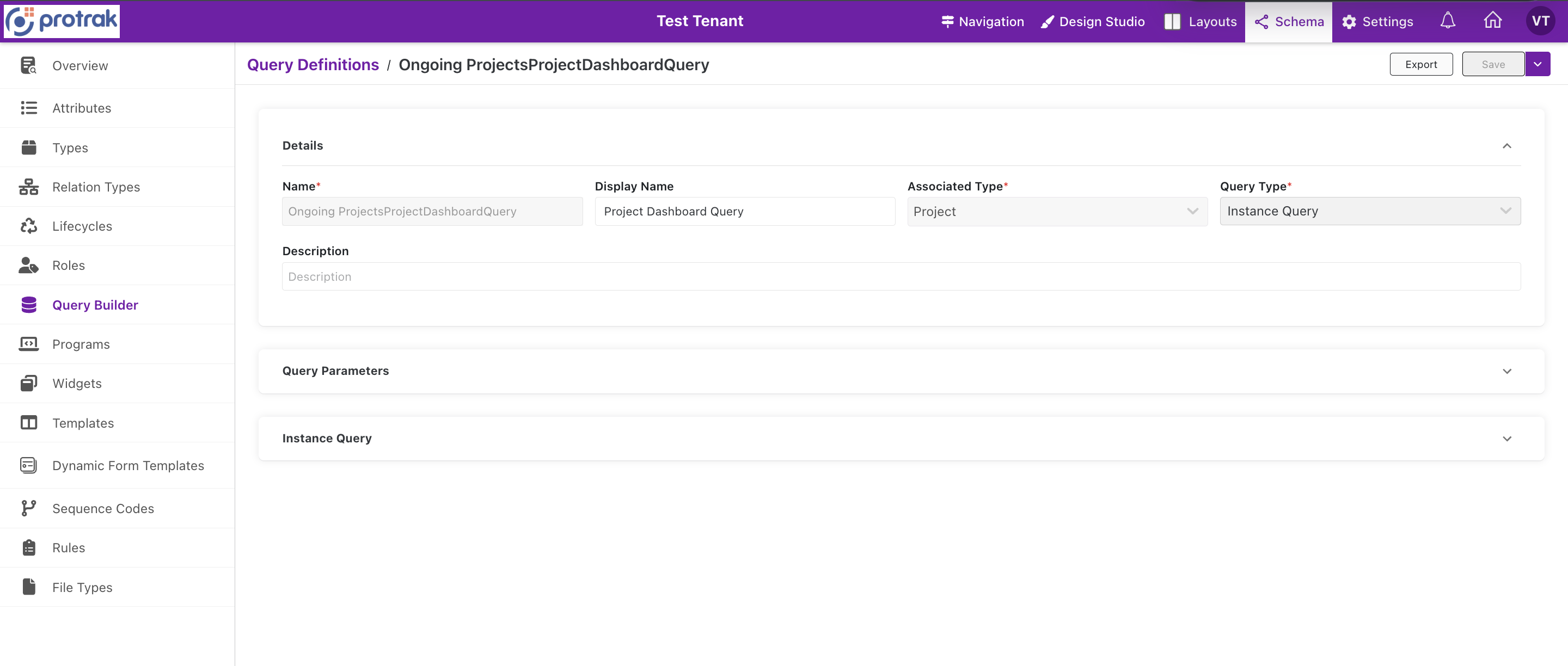 Query Definition details — Name, Display Name, Associated Type, Query Type (Instance Query), and Description fields.
Query Parameters
Query Parameters let you define named placeholders that can be resolved at runtime. These enable dynamic filtering — where the filter value comes from the current page context (e.g., the current user, the current instance's ID) rather than a fixed value.
Parameters are referenced in filter conditions using the parameter name as the value source.
Instance Query Configuration
Use this for Dashboard Widgets and Report Widgets.
Select Attributes
Controls which type attributes the query returns — directly affects what's available in the Column Designer.
| Option | Effect on Column Designer |
|---|---|
| All | All type attributes are available as columns |
| Specific | Only the listed attributes are available (others are hidden in the widget) |
Choose Specific when you want to restrict which columns admins can add to the widget, or when you want to optimize data payloads.
Parent Filter
Filters instances by their parent relation — useful for hierarchical types where you want to show only children of a specific parent.
| Column | Description |
|---|---|
| Relation Type | The parent-child relation type to filter on |
| Parent Type | The type of the parent instance |
| Is Dynamic Value | When checked, the parent is resolved from the current page context (e.g., the current instance) instead of a fixed value |
| Default Value | The fallback parent scope (All, specific instance, etc.) |
State Filter
Filters instances by their lifecycle state (e.g., Active, Archived, Closed).
- Select one or more states
- Only instances in those states will appear in the widget
- Leave empty to include all states
Attribute Filter
Filters instances by attribute values using a flexible rule builder.
Each filter row is: [Attribute] [Operator] [Is Dynamic?] [Value]
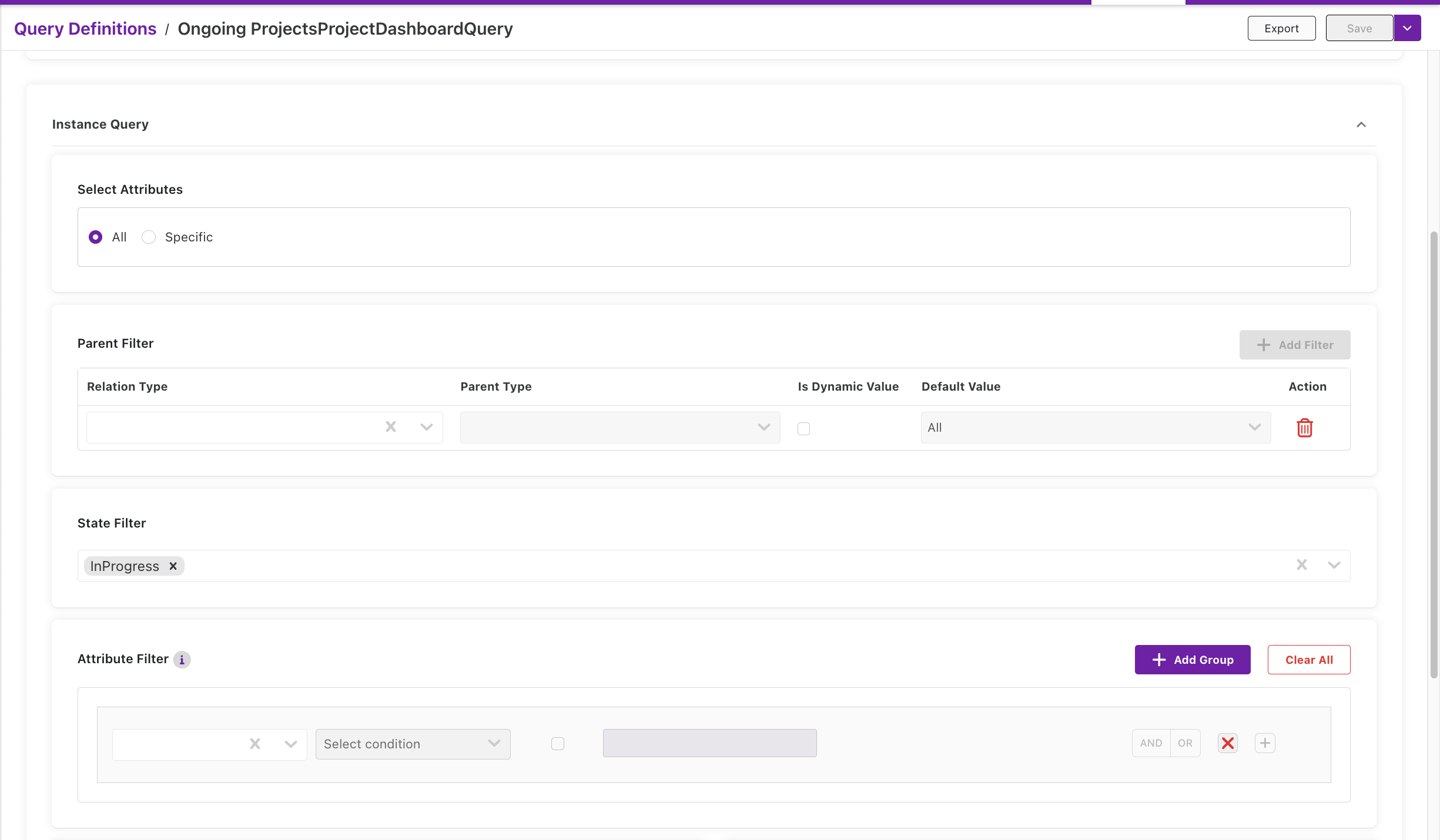 Instance Query configuration — Select Attributes (All/Specific), Parent Filter, State Filter (with "InProgress" selected), and Attribute Filter builder.
| Part | Description |
|---|---|
| Attribute | Which type attribute to filter on |
| Operator | equals, not equals, contains, starts with, greater than, less than, is empty, is not empty |
| Is Dynamic? | When checked, the value is resolved from a Query Parameter instead of a fixed value |
| Value | Fixed value, or the Query Parameter name when dynamic |
Multiple rows within a group use AND logic — all conditions must match. Click + Add Group to add an OR group — instances matching any group are included. Click Clear All to remove all attribute filters.
Example: Filter to instances where
Name contains [NamePara](a dynamic query parameter) — useful for search-enabled widgets.
Instance Query — Data Options
These settings fine-tune the query's behavior and performance:
| Option | Description |
|---|---|
| Skip | Number of instances to skip (offset for pagination). Default: 0 |
| Take | Maximum number of instances to return. Default: 500 |
| Sort By | Default sort attribute |
| Is Sort By Descending | Sort direction — checked = descending |
| Only Actionable Instances | When checked, only return instances the current user has permission to act on (replaces the old "Promote Permission" filter) |
| Get Allowed Operations | Include which CRUD operations the user can perform on each instance |
| Get Allowed Actions | Include which custom actions the user can trigger on each instance |
| Get Data From DB | Bypass any caching and fetch directly from the database |
| Include Total Count | Return the total count of matching instances (required for pagination display) |
Note: The "Only Actionable Instances" filter (formerly Promote Permission filter) is configured in the Query Definition. When enabled, a widget using this query will only return instances the current user has permission to act on — keeping lists focused and relevant.
Relation Query Configuration
Use this for Relation Widgets placed on View templates.
Relation Filter (Required)
Defines which relation to traverse to find related instances. At least one filter row is required.
| Column | Description |
|---|---|
| Relation Direction | To (current instance → related) or From (related → current instance) |
| Relation Type | The specific relation type defined on the type (e.g., GatToDiary) |
| Type | The type of the related instances |
| Default Value | Scope — All, specific state, etc. |
Click + Add Filter to add multiple relation traversal rules.
Select Attributes
Same as Instance Query — controls which instance attributes of the related type are available in the Column Designer.
| Option | Effect |
|---|---|
| All | All attributes of the related type available as columns |
| Specific | Only the listed attributes available |
Select Relation Attributes
Controls which relation-level attributes are available as columns (metadata on the relation itself, not the related instance).
| Option | Effect |
|---|---|
| All | All relation attributes available as additional columns |
| Specific | Only the listed relation attributes available |
If you don't need relation-level metadata, leave this as "All" with nothing selected — it won't hurt.
State Filter & Attribute Filter
Same as Instance Query — filter the related instances by state or attribute values.
How Query Definition Drives the Column Designer
This is the most important concept for Type Widgets:
┌─────────────────────────────────────────────────────────────┐
│  Query State          │  Column Designer Gets               │
├───────────────────────┼─────────────────────────────────────┤
│  No query             │  ALL type attributes                │
│  Query, All attrs     │  ALL type attributes (+ filters)    │
│  Query, Specific attrs│  ONLY listed attributes             │
│  Relation Query       │  Related type attrs + relation attrs│
└───────────────────────┴─────────────────────────────────────┘
Scenario 1 — No Query Definition selected
When no query is attached, the widget fetches all instances of the type.
- Column Designer: All type attributes are available to add as columns
- Relation Attributes: Not available (no relation query)
- Filters: No query-defined filter parameters — widget shows everything
- Best for: Quick "show me everything" dashboards, or when you intend to let users filter at runtime
Scenario 2 — Query selected, getAllAttributes = true
The query is configured to return all attributes (not a specific subset).
- Column Designer: All type attributes are available, same as no-query scenario
- The query still applies its filter logic (state, attribute, parent, relation filters)
- Best for: Filtered data views where you want to pre-filter instances but still see all columns
Scenario 3 — Query selected, specific attributes listed
The query specifies an explicit list of attributes to return.
- Column Designer: Only the attributes listed in the query are available as columns
- Attributes not in the query are locked out — this is intentional, the data simply won't be fetched
- Best for: Performance-optimized widgets where you know exactly which columns you need
Scenario 4 — Relation Query (for Relation Widgets)
Relation Widgets use a Relation Query instead of an Instance Query.
- The query defines the relation direction (To/From) and relation type to traverse
- Column Designer — Instance Attributes: Attributes from the related type (same rules as above — all or specific based on
getAllAttributes) - Column Designer — Relation Attributes: If the query specifies relation attributes (
getAllRelationAttributes = trueor specific list), those appear as an additional set of columns on the relation itself (e.g., relation-level metadata) - Best for: Showing related records directly inside a View template (e.g., showing all "Diary" records linked to a "Gat" instance)
Tip: Configure your Query Definition before creating the widget — it saves time since you won't need to go back and re-set the query after the column designer is already populated.
→ Type Widgets — where you use queries in widgets
Tips
- Name descriptively —
ActiveProjectsForDashboardbeatsQuery1 - Use dynamic values for parameterized filtering (current user, current instance)
- Set
Takedeliberately — 500 default works for most; lower for high-volume types - Enable
Include Total Countwhen pagination needs to show totals
Next Steps
- Use a query in a Type Widget: Type Widgets
- Place a Type Widget in a template: Page Template Editor