Sprint Planner Widget
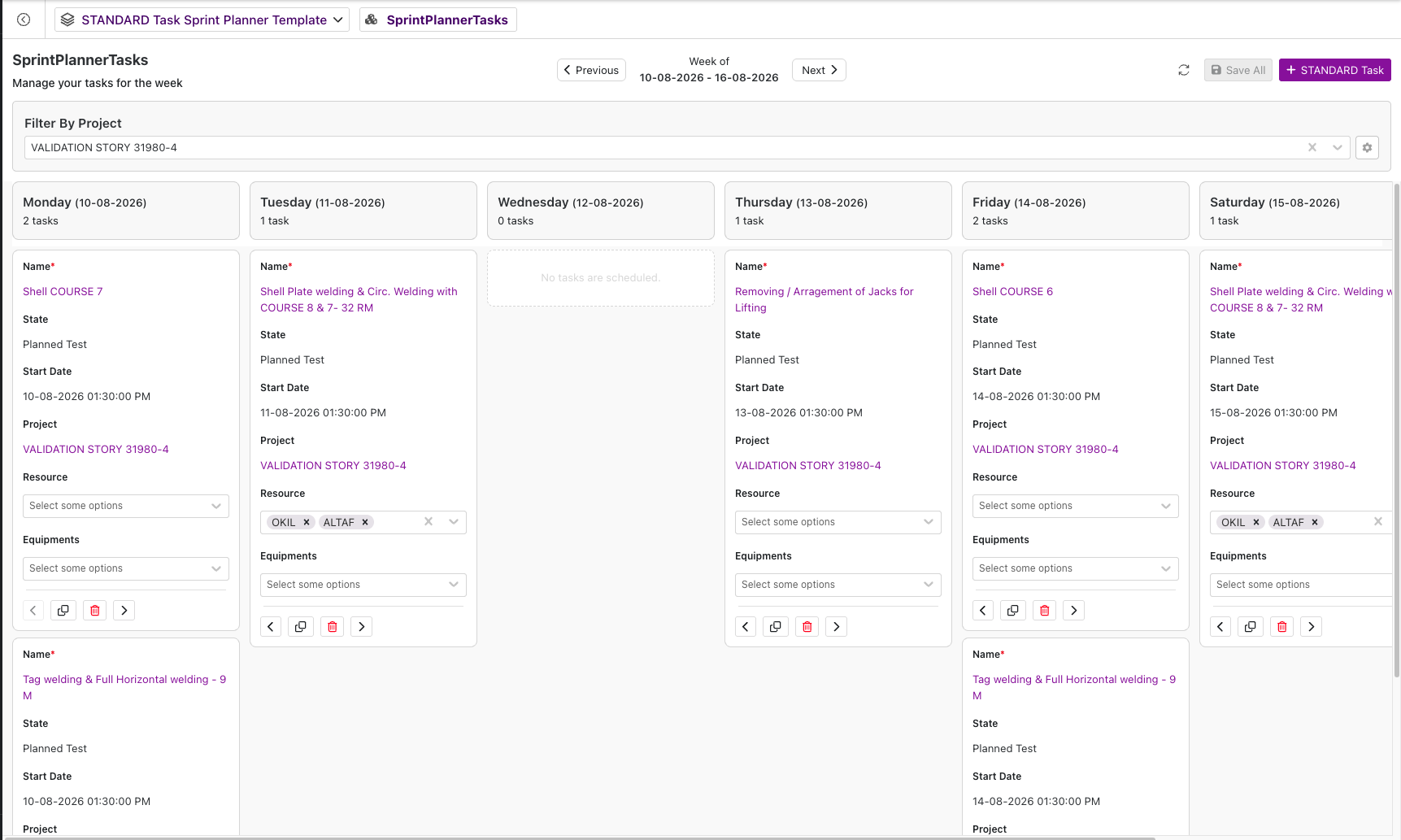
Sprint Planner is a Type Widget display option that lays your records out as a weekly board — seven day columns, Monday to Sunday, with one card per record. Teams use it to see the week's workload, edit records directly on the card, and move work between days without opening each record.
Overview
A Sprint Planner widget is an ordinary Type Widget with Widget Category set to Dashboard and Show As set to Sprint Planner, placed on a Dashboard template. You pick one date attribute — the Day Mapping Attribute — and that value decides which day column each record lands in.
Typical uses:
- A Task board where the team plans and rebalances the week's work.
- A Shift or Visit board where each record is scheduled to a specific day.
- A Maintenance Activity board where planners drag work forward a day when it slips.
How it Works
You configure the widget once, and the board then renders in three zones — the header, the seven day columns, and the cards inside them. The sections below follow that order, top to bottom.
Sprint Planner Settings
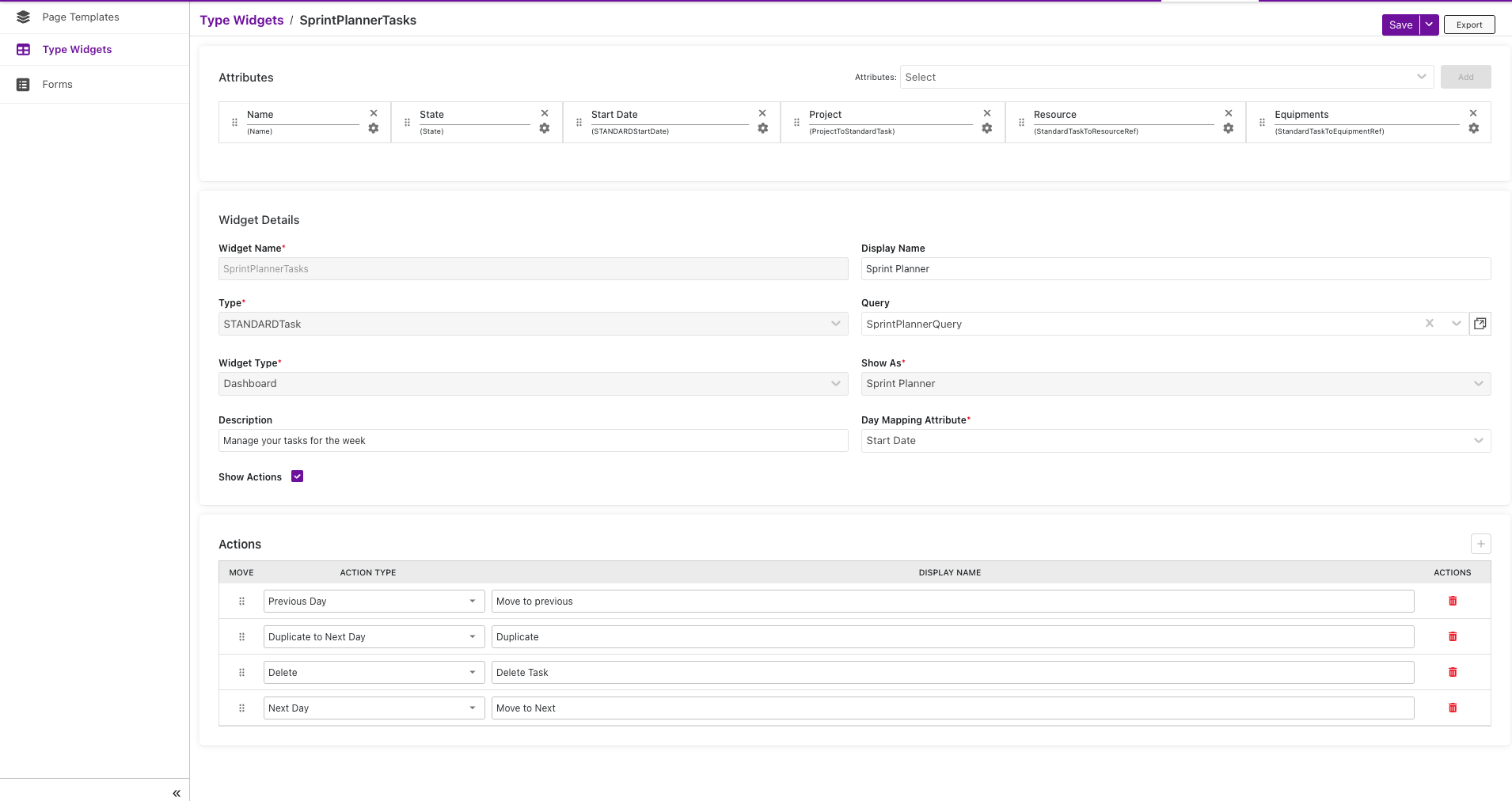
When you set Show As to Sprint Planner, these settings appear in the widget's details:
| Setting | Description | Required |
|---|---|---|
| Day Mapping Attribute | The Date & Time attribute that decides which day column a record appears in. | Yes |
| Description | A short subtitle shown under the widget title. If left empty, it defaults to "Manage your {Type} for the week". | No |
| Show Actions | Turns on the action buttons at the bottom of each card. Ticking this reveals an Actions section where you choose which ones appear and rename them. | No |
The Column Designer section is labeled Attributes for this widget — the attributes you add become the fields shown on each card, not grid columns.
What the Board Displays
In the header
- A week navigator (Previous / Next) with the current week's date range, plus a Reload button and a Save All button.
- An Add {Type} button, shown only to users whose role has Create permission on the type.
- A Filter By dropdown, when the widget's Query Definition defines a parent filter. See Filter By.
In the day columns
- Seven day columns, Monday to Sunday. Each column header shows the day, the date, and the number of tasks in it.
- Empty days show "No tasks are scheduled."
On each card
- One card per record, showing the attributes you added in the Column Designer. Fields are editable directly on the card.
- The record's Name is shown as a link to its View page, and Reference fields become searchable dropdowns.
- Which fields a user sees and can edit depends on both the widget configuration and the record's lifecycle state. See Field Visibility and Editability.
- Action buttons along the bottom, when Show Actions is ticked. See Card Actions.
Filter By
If the widget's Query Definition defines a parent filter, a dropdown appears above the board labeled Filter By {Parent Type} — for example Filter By Project when the parent type is Project.
- The dropdown lists the records of that parent type; picking one narrows the board to the records linked to it.
- It defaults to All, which shows everything.
If the query defines more than one parent filter, you get one dropdown per level, each narrowed by the selection above it. No parent filter in the query means no dropdown — this widget has no other filter, sort, or search controls.
Field Visibility and Editability
Each attribute in the Attributes section has its own Visible and Editable settings, and those combine with the record's lifecycle state:
- To be shown on the card, the attribute's Visible setting must be on. A field turned off here is never shown, to anyone.
- To be editable on the card, both must be true: the attribute's Editable setting is on, and the record's current lifecycle state grants edit access on that attribute to the user's role.
- The State field is always read-only on the card.
Card Actions
These appear at the bottom of each card when Show Actions is ticked. Add only the ones your team needs:
| Action | What it does |
|---|---|
| Previous Day | Moves the card one day earlier. Disabled on Monday. |
| Next Day | Moves the card one day later. Disabled on Sunday. |
| Duplicate to Next Day | Adds a copy of the record on the next day. Disabled on Sunday. |
| Delete | Deletes the record, after a confirmation. |
Moves and duplicates are not saved immediately — they are held until the user clicks Save All.
Steps to Use
You need a type with a date attribute to schedule against (e.g. Planned Date) before you begin.
1. Configure the Widget
- Navigate to Design Studio → Type Widgets and click Create.
- Fill in the basic details — Widget Name, Display Name, Type Name, and Widget Category (Dashboard). Attach a Query Definition if you want to limit which records appear.
- Set Show As to Sprint Planner.
- Select the Day Mapping Attribute — the date attribute that decides which day each record falls on.
- Optionally enter a Description, and tick Show Actions to choose which card actions users get.
- In the Attributes section, add the attributes you want shown on each card.
- Save the widget.
2. Place it on a Template
Open your Dashboard template in the Page Template Editor and add the widget. Give it a wide, tall container — it renders seven columns side by side. See Page Template Editor for placement and sizing.
3. Use the Board
Once published, users can:
- Navigate weeks with Previous and Next, and narrow the board with Filter By if it's available.
- Edit fields directly on any card.
- Use the card actions to move work between days or duplicate it.
- Click Save All to save every pending change in one go.
- Click Add {Type} to create a new record, or a card's Name to open that record.
Notes
- The Day Mapping Attribute must also be added in the Attributes (Column Designer) section, along with any other attribute you want on the card.
- Records with an empty Day Mapping Attribute don't appear on the board.
- Only the visible week is loaded Navigating weeks re-fetches the data.
- Changes are batched, not auto-saved. Nothing is written until the user clicks Save All.
- Moving to another week discards unsaved changes. Users are warned first and can cancel.
- Saving is per record. If some records fail, the successful ones are still saved — failed cards get a red border and a warning icon explaining why, and the header shows how many failed.
- This widget has no toolbar, sorting, search, bulk actions, export, or conditional formatting — those settings don't apply to a card board. The only filter is the Filter By dropdown described above.
- The week always runs Monday to Sunday.
Next Steps
- Creating and configuring widgets: Type Widgets
- Placing the board on a template: Page Template Editor