Quick Edit Forms
A Quick Edit form is a Design Studio form mode for designing the compact popup that opens when a user clicks the Quick Edit action on a dashboard or relation widget row. Instead of sending the user to the full Edit page, Quick Edit lets them fix a few fields right where they are.
A regular form (Create / Edit / View) is a full-page layout that adapts to devices. A Quick Edit form is a compact popup layout — smaller, simpler, and deliberately limited to a small set of widgets.
This page covers designing the popup itself. To make it available to users you attach it to a Quick Edit action — see Quick Edit Action.
Step 1: Create the form and set Form Mode
- Go to Design Studio → Forms and click Create.
- Fill in Form Name, Display Name, and Type Name (as with any form).
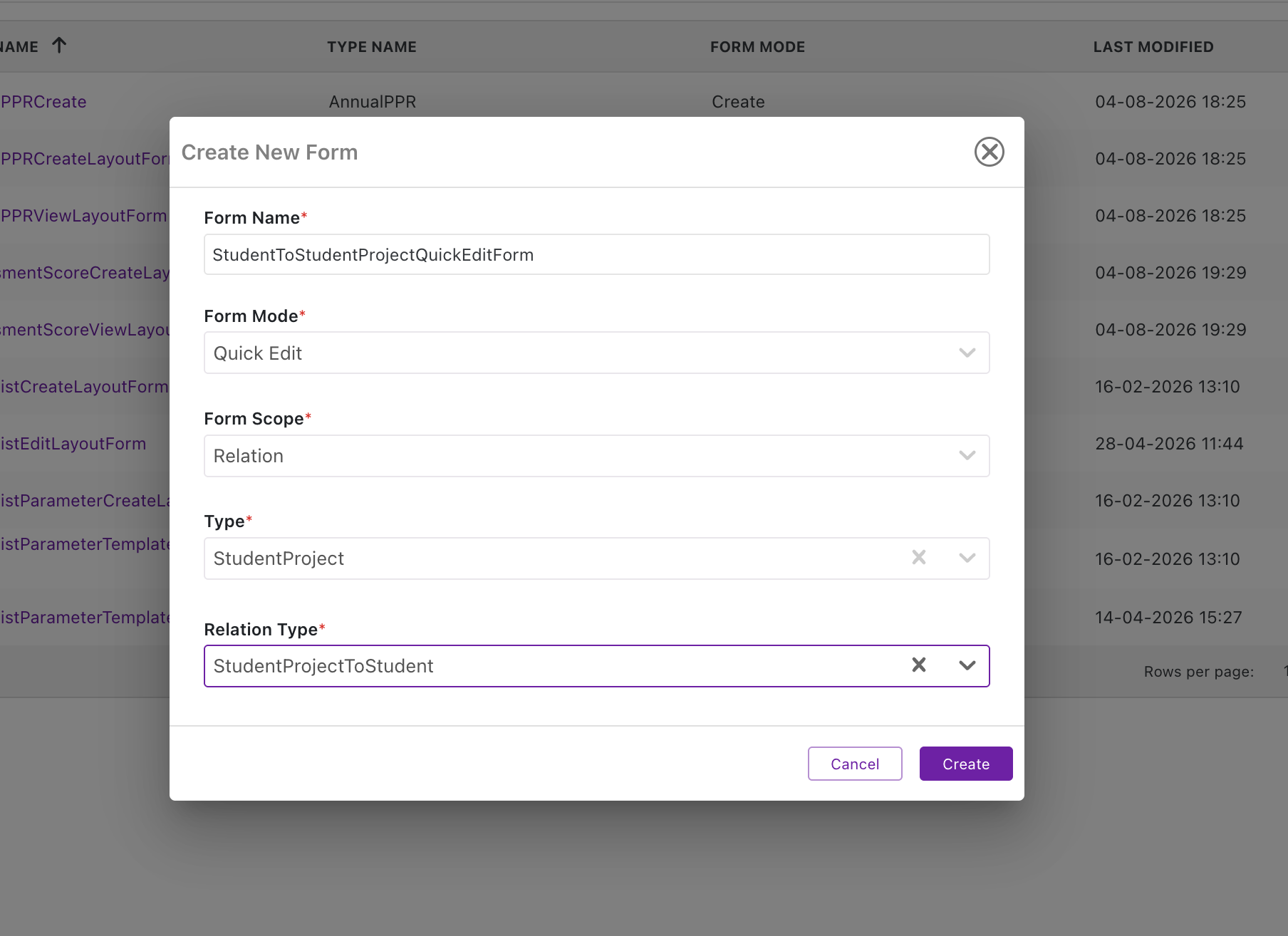
- In the form's Form Details settings, open the Form Mode dropdown and choose Quick Edit.
Choosing Quick Edit reveals the Form Scope field.
Step 2: Choose the Form Scope
Form Scope (required) tells Protrak which kind of Quick Edit action can use this form.
| Scope | Use it for | Extra required field |
|---|---|---|
| Dashboard | Quick Edit actions on dashboard widget rows — editing the record itself | — |
| Relation | Quick Edit actions on relation widget rows — editing the related record, and optionally the relation between the two records | Relation Type |
Choosing Relation reveals a Relation Type dropdown. Pick the relation this form is built for — the form is then only offered on Quick Edit actions for relation widgets built on that same relation type.
Form Scope, Type Name, and Relation Type are set at creation time and locked once the form is first saved — decide these before you start building.
Step 3: Build the popup
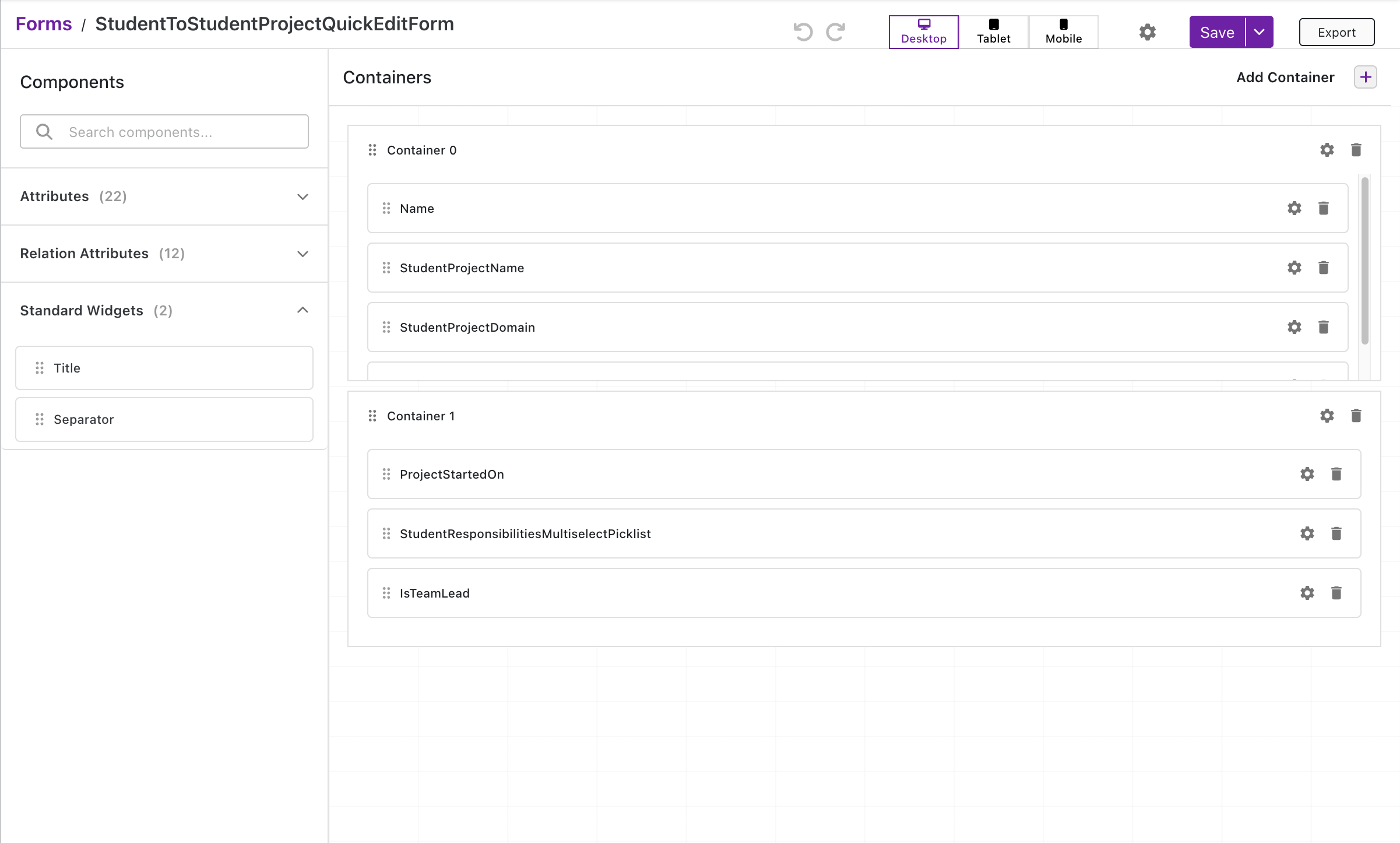
Add containers and drop fields and widgets into them — just like a regular form — but the component library is intentionally smaller for Quick Edit:
| Available in the component library | Notes |
|---|---|
| Attributes (of the type) | Drag onto the form as fields, same as any form |
| Relation Attributes | Only appears when Form Scope = Relation — fields stored on the relation itself (e.g. quantity, role), not on either linked record |
| Title (Text) | A heading or static label |
| Separator | A dividing line |
Editing relation attributes
When a Quick Edit form's scope is Relation, you can place both:
- Attributes that belong to the related record, and
- Relation Attributes that belong to the link between the two records
on the same popup. When the user clicks Save, Protrak updates each side correctly — the related record's own attributes are saved to that record, and the relation attributes are saved to the relation itself, together in one action.
Next Steps
- Make this form available to users: Quick Edit Action
- Build regular screen layouts: Forms
- Control how tall each container renders: Container Height
- Return to the module overview: Admin Configuration Guide