Quick Edit Action
Quick Edit is a row action you add to dashboard widgets and relation widgets. Users click it on a record and edit it in a compact popup — right there on the page, no need to open the full Edit page.
By default, Quick Edit opens a popup with an editable field for every column that's visible on the widget. Add a Quick Edit form to control exactly which fields appear and how they're laid out. Configuring a form is optional — without one, the default popup still works.
To create a Quick Edit form first, see Quick Edit Forms.
Where This Action Is Available
| Surface | Available? |
|---|---|
| Dashboard widget row action | ✅ |
| Relation widget row action | ✅ |
Add the Action
Quick Edit is configured on the Actions column of a widget, the same way as any other row action. In each case you follow the standard action-configuration flow and then set the optional Quick Edit Form field described below.
Row action — dashboard widget
- Open the Type Widget in Design Studio.
- In the Columns section, open the Actions column's settings.
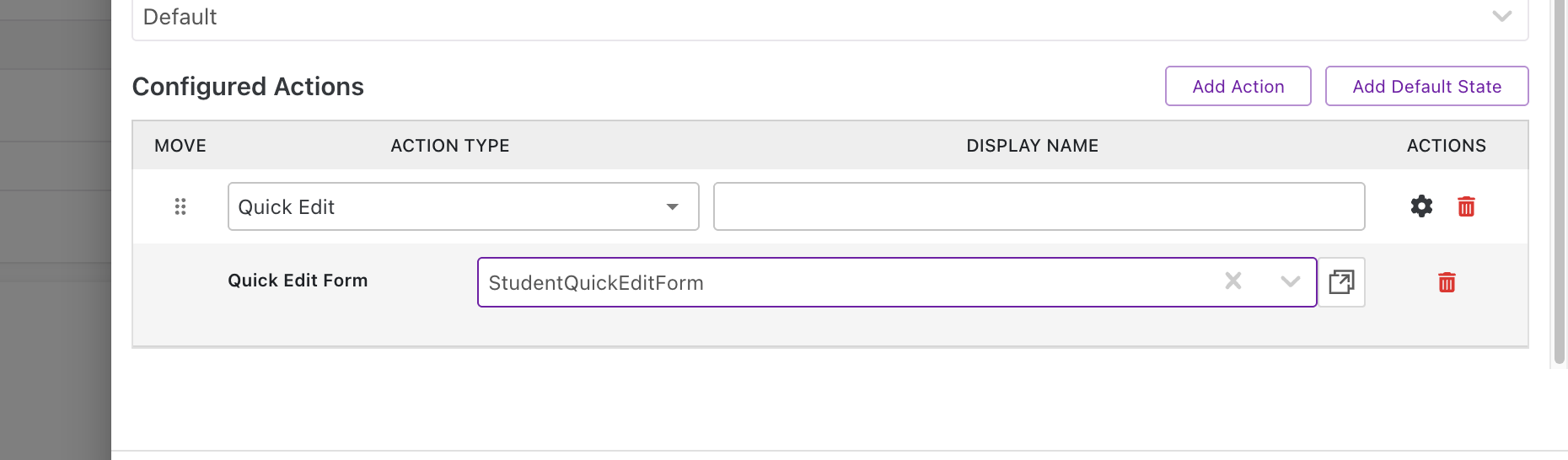
- Click Add Action, set Action Type to Quick Edit, and give it a display name.
- In the Quick Edit Form field, select the Quick Edit form to use — or leave it blank to use the default popup.
This adds a per-row Quick Edit button to every record in the widget, wherever that widget is placed (a type dashboard or the Home page).
Row action — relation widget
- Open the Type Widget for the Relation widget in Design Studio.
- In the Columns section, open the Actions column's settings.
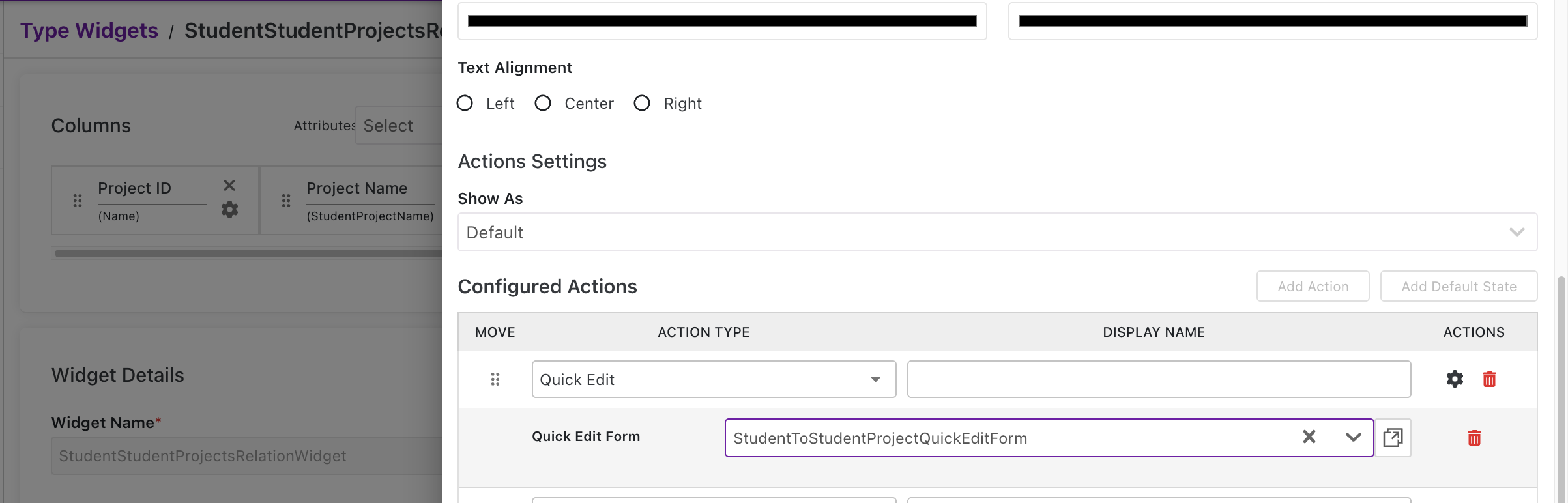
- Click Add Action, set Action Type to Quick Edit, and give it a display name.
- In the Quick Edit Form field, select a Quick Edit form scoped to this relation — or leave it blank to use the default popup.
On a relation widget, Quick Edit always edits the related record (and optionally the relation between the two records — see below), not the record the widget is placed on.
The Quick Edit Form Field
Both surfaces expose the same Quick-Edit-specific field once Quick Edit is chosen as the Action Type:
| Field | Description |
|---|---|
| Quick Edit Form | The Quick Edit-mode form to open. The dropdown only lists forms built for the right context: Dashboard-scope forms for this type on a dashboard widget, or Relation-scope forms matching this relation type on a relation widget. Leave blank to use the default popup. |
| Go to Quick Edit Form (↗ icon) | Opens the selected form in Design Studio in a new tab for quick editing. |
What Users See
Without a form — the default popup
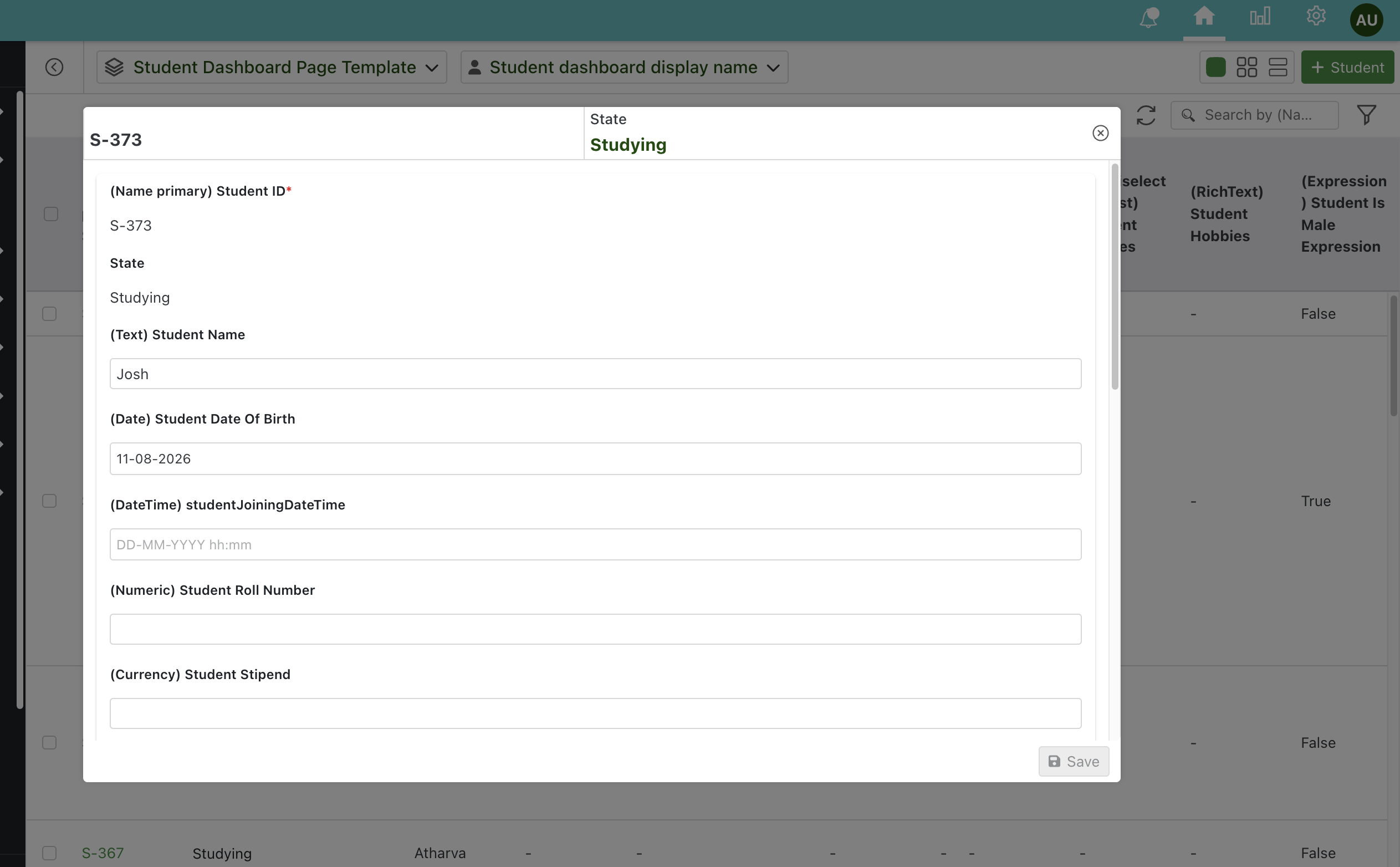
Clicking Quick Edit on a row opens a popup titled with the record's name, showing an editable field for every visible column on that widget.
- On a dashboard widget, this is the record itself.
- On a relation widget, this is the related record.
The user edits the fields and clicks Save. The popup closes and the row refreshes with the new values; Cancel discards the changes.
-
default popup
-
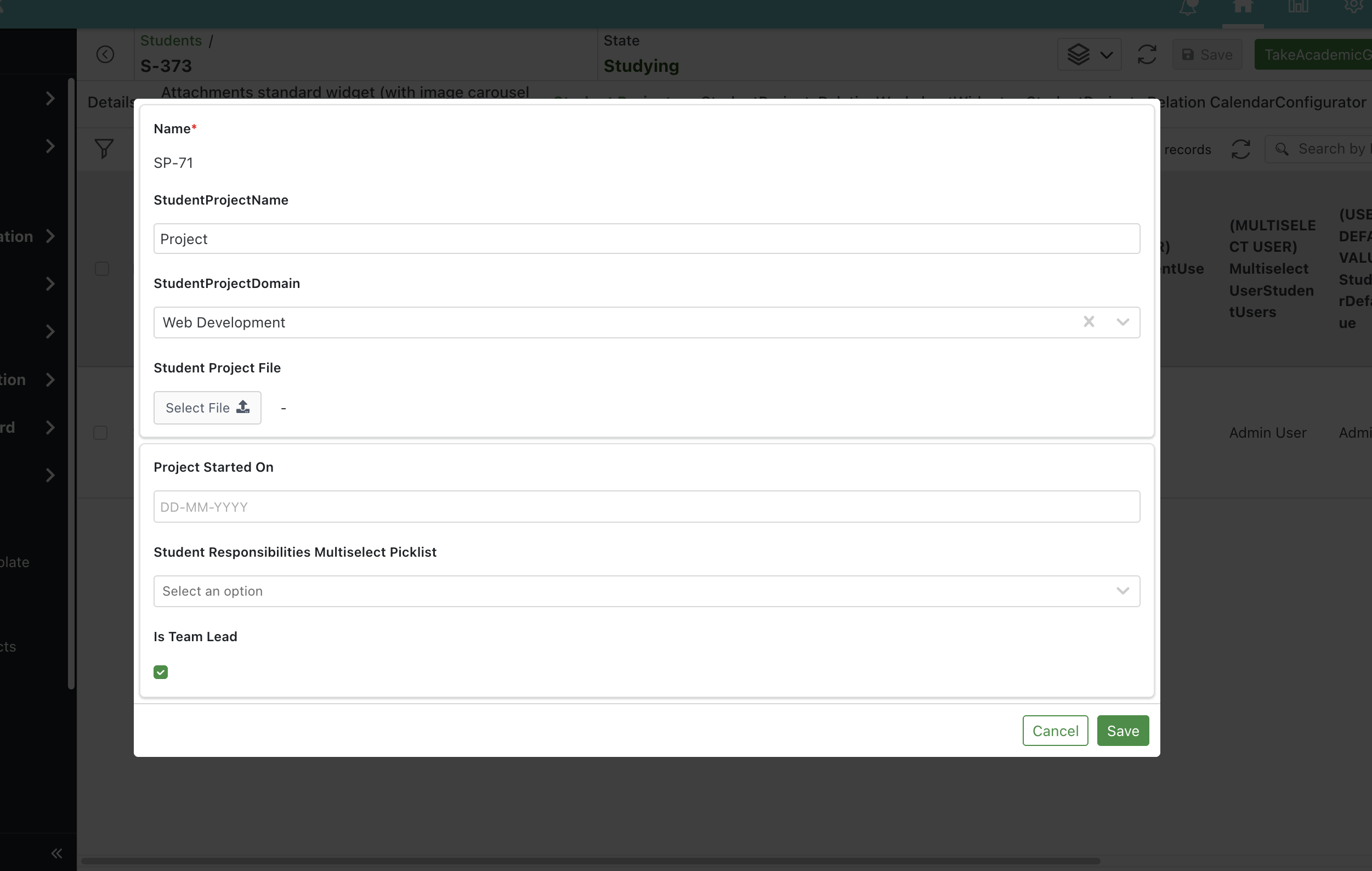
with quick edit form popup
With a Quick Edit form
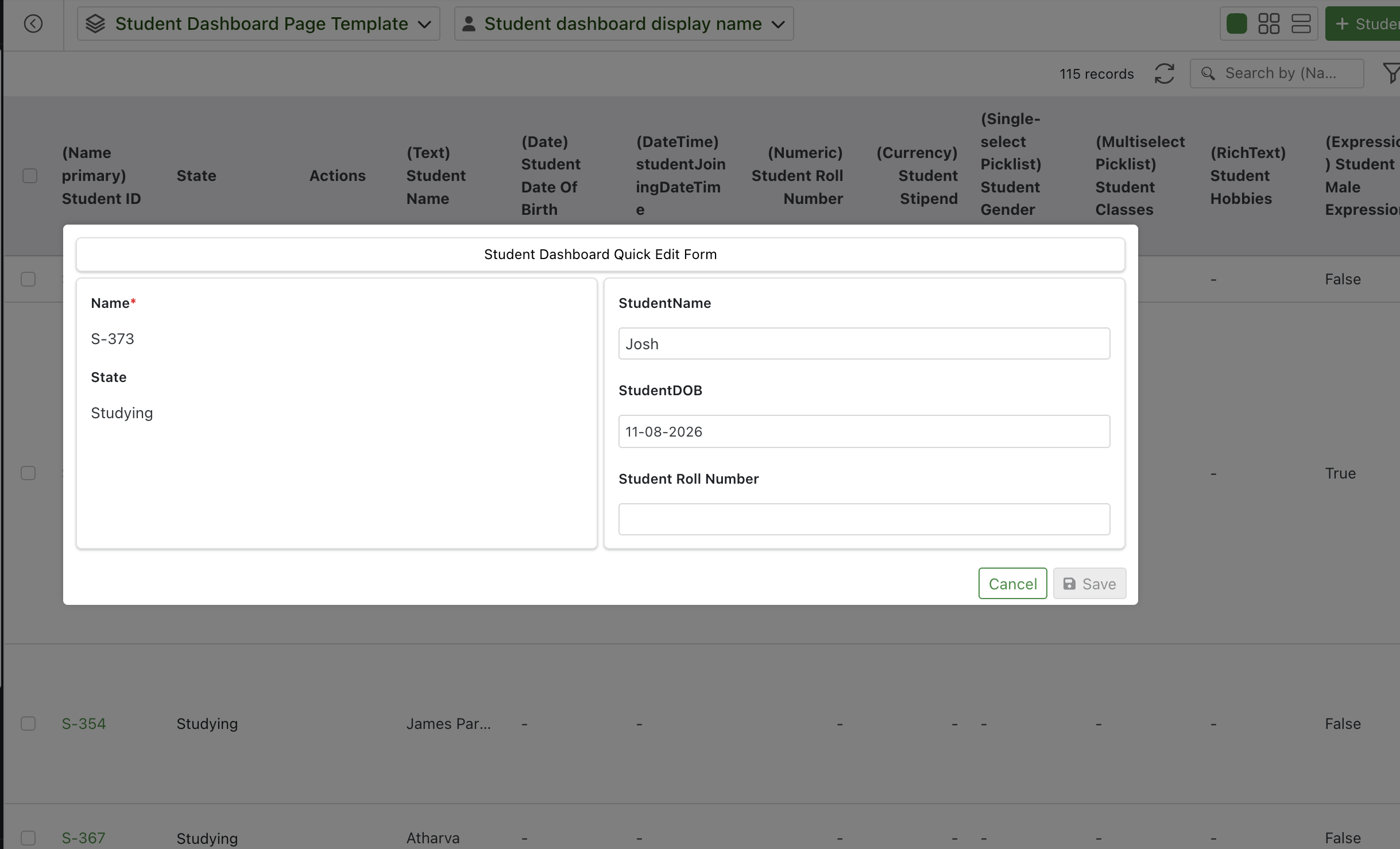
The popup renders your form's layout instead — only the containers and fields you placed on it, laid out the way you designed.
On a relation widget with a Relation-scope form, the popup can also include Relation Attributes — data stored on the link between the two records (for example a quantity or a role), separate from either record's own data. Editing a relation attribute and a related-record attribute in the same popup and clicking Save updates both together, in one action.
Next Steps
- Design a Quick Edit form: Quick Edit Forms
- All form types and the Form Builder: Forms
- Configure widgets and their Actions column: Type Widgets
- Return to the module overview: Admin Configuration Guide