Annotate File Action
Annotate File is a page action you add to a View page template. Users open an instance, run the action, and the file attached to it opens in a full-screen markup tool — draw on it, add notes, place numbered callouts, apply a review stamp.
The markup is stored on the instance, so the next person to open it sees the same annotations. The original file is never changed. Annotations auto-save as the user draws, so nothing is lost if they close the dialog — a Save button is also available if they want to save immediately.
Where This Action Is Available
| Surface | Available? |
|---|---|
| View template page action | ✅ |
Configure the Action
- Design Studio → Page Templates → open the View template for your type.
- Open Action Settings.
- Click Create, set Action Type to Annotate File.
- Expand the row's settings and fill in the fields below.
- Close the panel and Save the template.
Start with File Source — it decides whether the file lives on this instance or on a linked one.
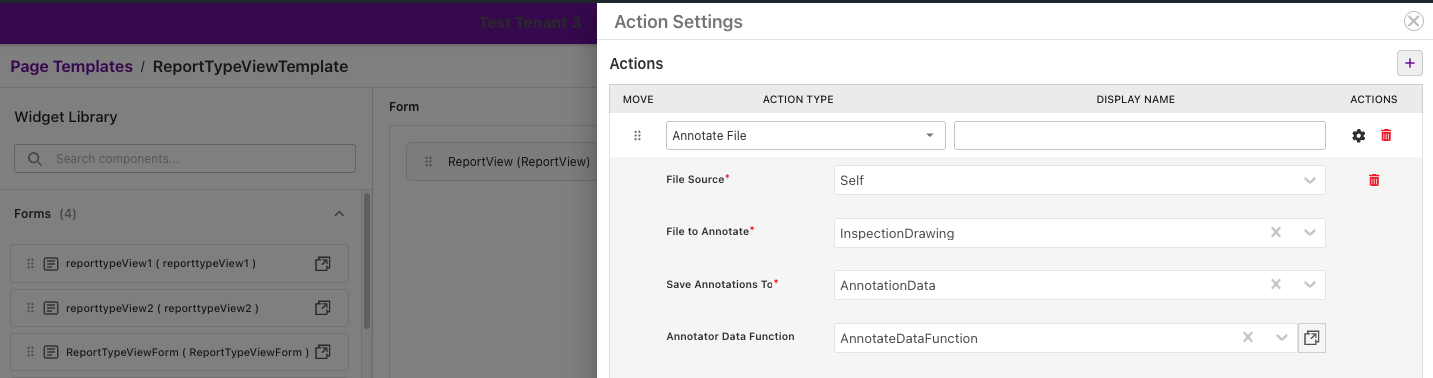
File Source: Self
Use this when the file being annotated is an attachment on the instance itself.
Example: an Inspection type where the PDF is stored in an attachment attribute named
InspectionDrawing, and the markup should be saved to a text attribute named AnnotationData.
| Setting | What it does | Example |
|---|---|---|
| File Source | Where the file lives — set to Self | Self |
| File to Annotate | The attachment attribute holding the file | InspectionDrawing |
| Save Annotations To | The text attribute the markup auto-saves to | AnnotationData |
| Annotator Data Function | Optional custom widget — see Annotate File Widget | — |
File Source: Related Item
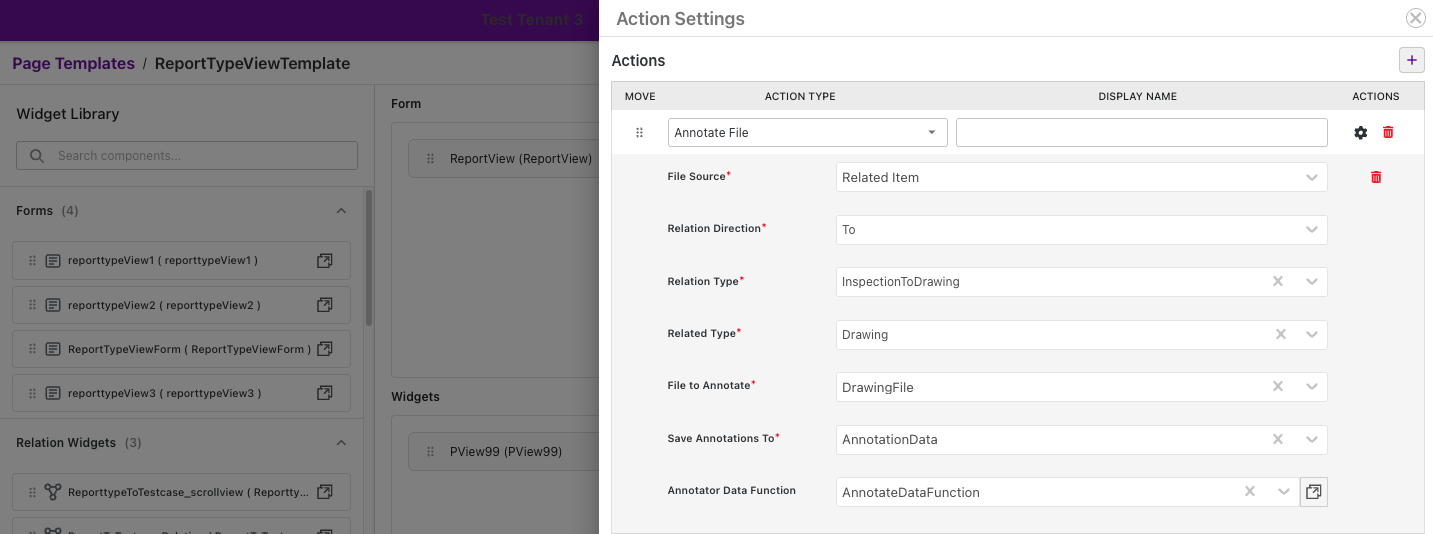
Use this when the file being annotated is an attachment on a different instance, linked to this one.
Example: an Inspection type linked to a Drawing type through a relation type named
InspectionToDrawing. The PDF is stored on the Drawing instance, in an attachment attribute
named DrawingFile; the markup is still saved on the Inspection instance, in its own text
attribute AnnotationData.
| Setting | What it does | Example |
|---|---|---|
| File Source | Where the file lives — set to Related Item | Related Item |
| Relation Direction / Relation Type | The relationship to follow, from this instance to the one holding the file | To / InspectionToDrawing |
| Related Type | The type at the other end of that relationship — the type holding the file | Drawing |
| File to Annotate | The attachment attribute on the related type | DrawingFile (on Drawing) |
| Save Annotations To | The text attribute on this type — never on the related type | AnnotationData (on Inspection) |
| Annotator Data Function | Optional custom widget — see Annotate File Widget | — |
Annotation currently supports only one related instance, not multiple — if more than one instance matches the relation, only the first one is used.
What Users See
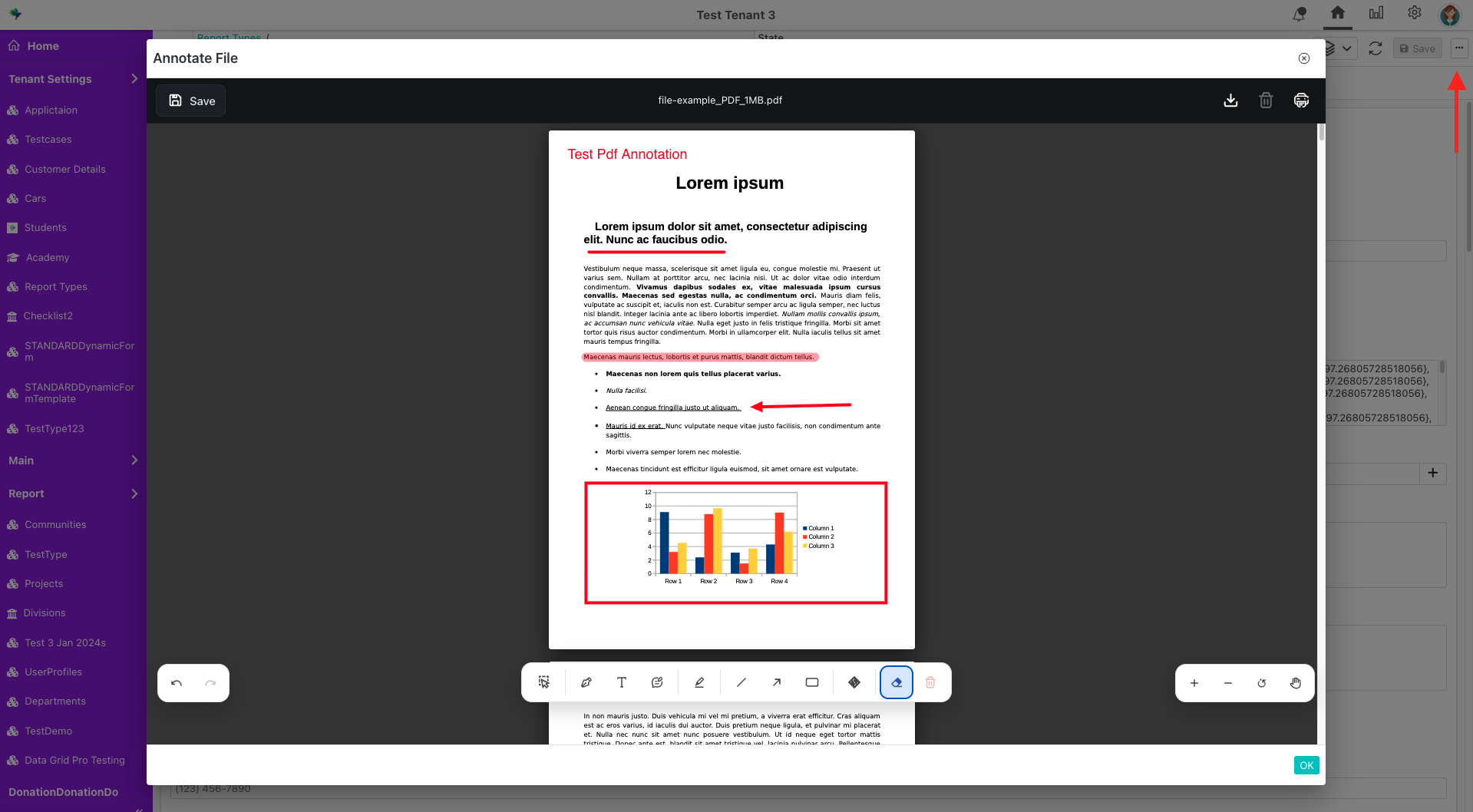
Users open the ⋯ actions menu on the instance's View page and click Annotate File. The file opens in a full-screen dialog, scaled to fit.
| Tool | What it does |
|---|---|
| Select | Move and resize existing annotations; pan the document. Double-click one to edit it. |
| Pen / Highlight | Freehand drawing / translucent highlighter |
| Text | A text label — type, then press Enter |
| Balloon | A numbered circle with a leader line, for labelling features |
| SVG | Places a review stamp (opens the Action Stamp dialog) |
| Line / Arrow / Rect | Straight line, arrow, rectangle |
| Eraser | Erases by drawing over annotations |
Click a tool again for its options — color, opacity, thickness, or font size.
Also available: Undo/Redo, zoom controls, and a ⋮ menu with Fit to Width/Page, page navigation, Delete Annotations (clears the page), Action Stamp, Download, and Print.
Download produces a flat copy with the annotations burned in — an annotated PDF for PDFs, or a PNG for images. The stored attachment is left untouched.
Limitations
- Supported files today: PDF and images. Anything else fails to open.
- If the Save Annotations To attribute is placed on a form, hide it with a Display Condition or make it non-editable — it holds machine-generated data, and if a user edits it and the value stops being valid JSON, the annotator silently opens with no annotations.
Troubleshooting
| Message | Cause and fix |
|---|---|
| No file available to annotate. | The attachment attribute is empty. Upload a file, or check that File to Annotate points at the right attribute. |
| Failed to load file. Please try again. | The file couldn't be fetched, or the user has no read access to the attachment. |
| No related instances found. | No linked instance of that type. If one exists, check Relation Direction — a reversed direction is the usual cause. |
| Failed to open file. Please try a different file. | Unsupported or corrupt file. Convert it to PDF or an image. |
| Failed to save annotations. | The user lacks update permission on the storage attribute, or it cannot hold a value that long. |
| Annotator widget errors | See Annotate File Widget. |
| The color picker is disabled. | An Annotator Data Function is forcing a color. Expected. |
Next Steps
- Page Templates — configure the rest of the page
- Client-Side Experience — how actions appear to users
- Annotate File Widget — write an Annotator Data Function
- FAQ & Troubleshooting