Create & Link Popup
The Create & Link popup lets a user create a brand-new record that is automatically linked to the record they're currently on — instead of creating the record separately and then linking it in a second step.
By default, this popup uses the related type's normal Create template — the same layout a user would see creating that record anywhere else. This feature lets an admin point the popup at a different, specific Create template instead, so the popup can show a simplified or context-specific data-entry form.
Configuring a template is optional — if you leave it blank, the popup keeps using the default Create template for the related type.
Where This Is Available
| Surface | Available? |
|---|---|
| Relation widget — + Create toolbar button | ✅ |
| Dashboard widget — Create Related Instance row action | ✅ |
| Reference attribute — inline + button (Forms) | ✅ |
Configure It on a Relation Widget
Every Relation widget has a built-in + Create button in its toolbar, which opens the Create & Link popup for the related type.
- Open the Type Widget for the Relation widget in Design Studio.
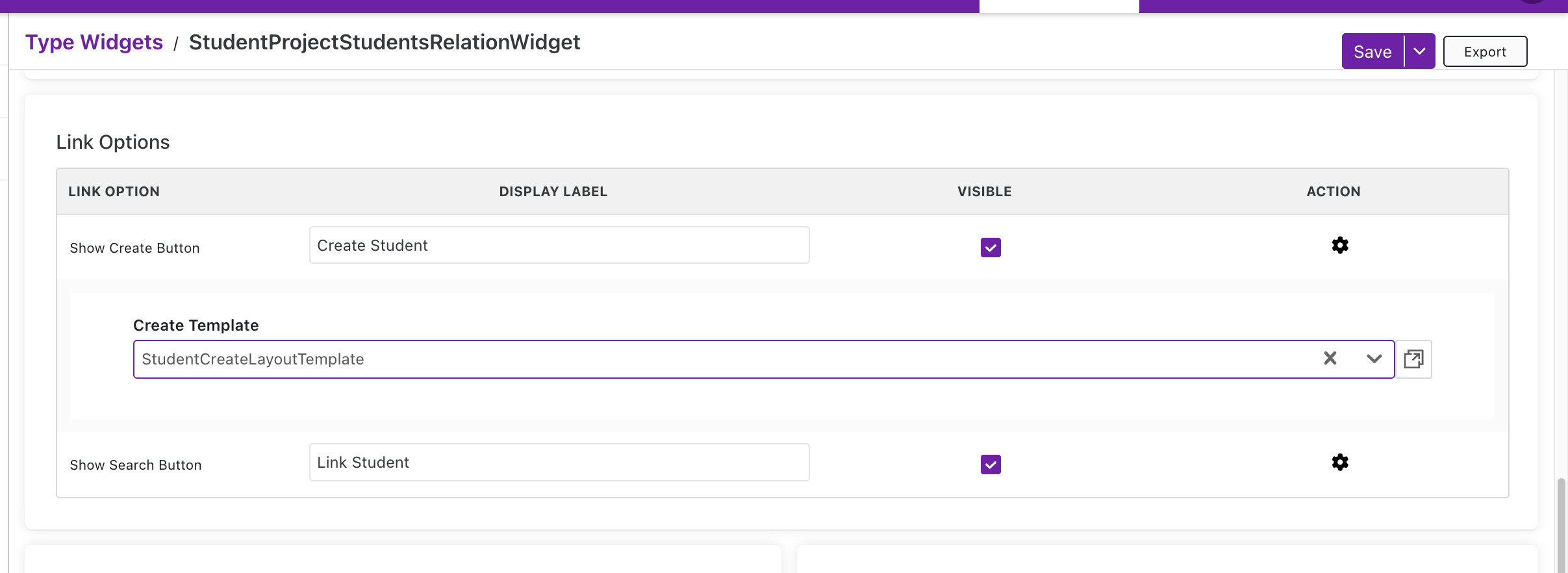
- Find the Link Options table.
- In the Show Create Button row, turn on Visible to show the button, and optionally set a Display Label for it (leave blank to use the default "Add {Type}" label).
- Click the ⚙ (gear) icon on that row to expand its settings.
- In the Create Template field, select the Create-type Page Template you want the popup to use — or leave it blank to use the related type's default Create template.
Configure It on a Dashboard Widget
On a Dashboard widget, the same popup is opened by the Create Related Instance row action.
- Open the Type Widget in Design Studio.
- In the Columns section, open the Actions column's settings.
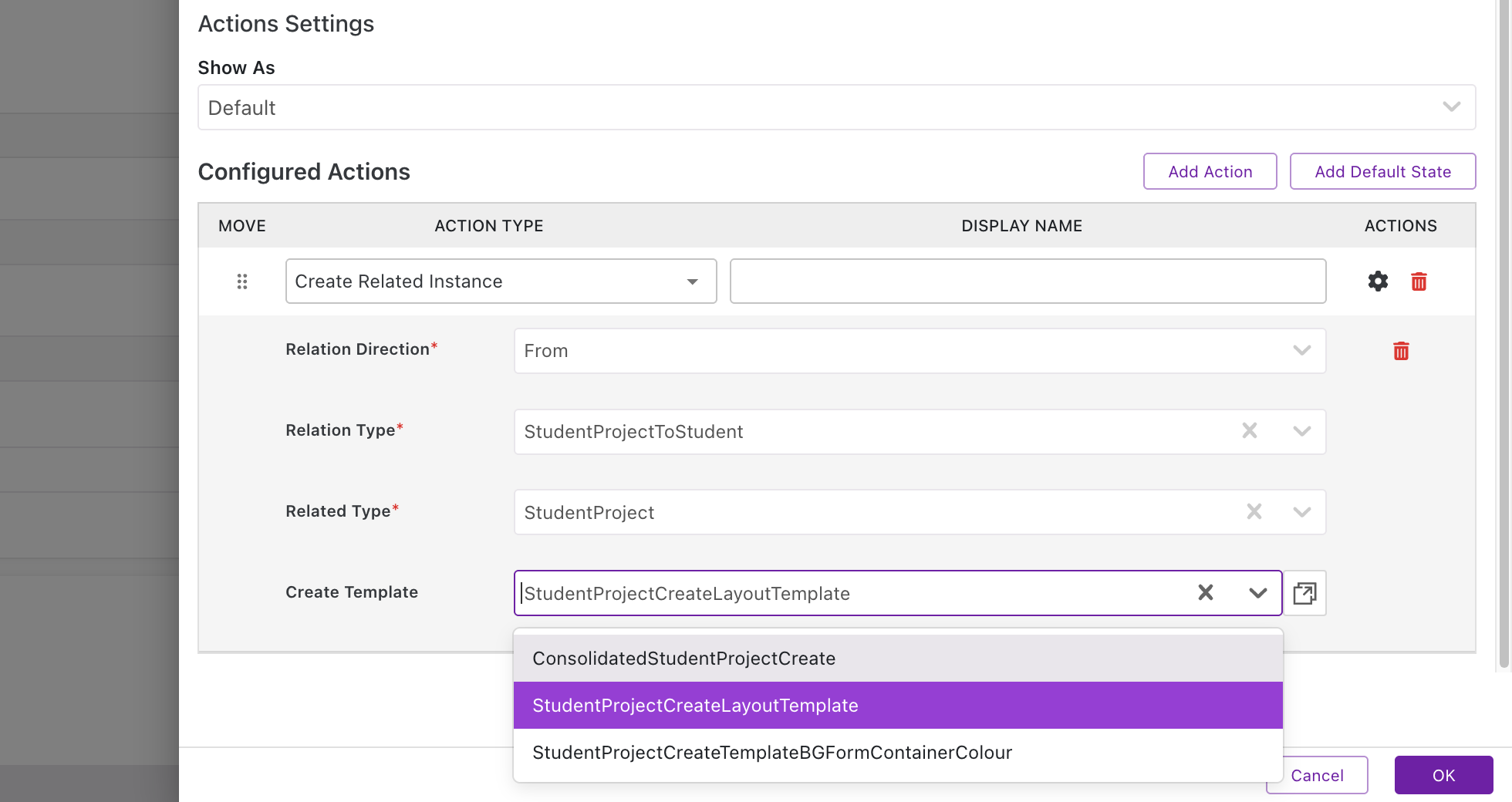
- Click Add Action, and set Action Type to Create Related Instance.
- Fill in the required Relation Direction, Relation Type, and Related Type fields.
- In the Create Template field, select the Create-type Page Template you want the popup to use — or leave it blank to use the related type's default Create template.
Configure It on a Reference Attribute
A Reference-type attribute is a single field, so it can't offer separate toolbar buttons the way a widget does. Instead, one setting — Link Option — decides which button(s) the field shows: a search button (🔍) for linking an existing record, a create button (+) for the Create & Link popup, or both.
-
Open the Form that contains the Reference attribute field in Design Studio → Forms.
-
Click the field's ⚙ (gear) icon to open its Field Settings.
-
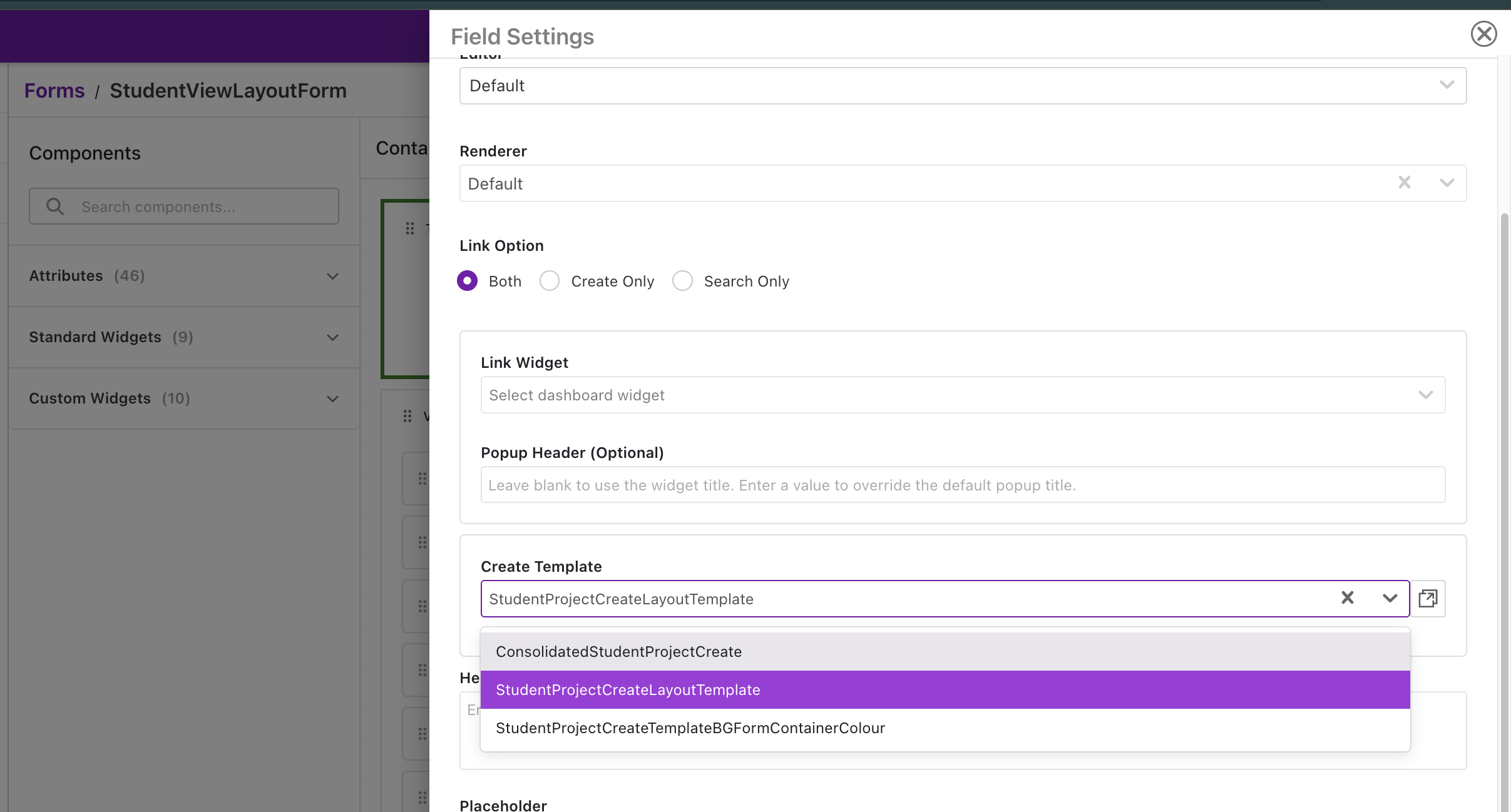
In the Link Option row, choose one of:
Link Option What the field shows Search Only (default) Only a 🔍 search button — opens a popup listing existing instances of the related type to pick from. No create option. Create Only Only a + create button — opens the Create & Link popu`p directly. No search option. Both Both buttons, so the user can either search-and-link or create-and-link. -
If you chose Create Only or Both, a Create Template field appears — select the Create-type Page Template you want the Create & Link popup to use, or leave it blank to use the related type's default Create template. This is the same setting described in The Create Template Field below.
-
If you chose Search Only or Both, a Link Widget field appears too — select the Dashboard widget that supplies the list of existing records to search and pick from, and optionally set a Popup Header (leave blank to use the widget's own title).
The Create Template Field
| Field | Description |
|---|---|
| Create Template | The Create-type Page Template to open in the popup. The dropdown only lists templates whose Template Type is Create and whose Type Name matches the related type. Leave blank to use the related type's default Create template. |
This field works the same way on all three surfaces — Relation widget, Dashboard widget, and Reference attribute.
What Users See
Clicking the + Create button on a Relation widget, the Create Related Instance action on a Dashboard widget, or the + button on a Reference attribute field opens a popup where the user fills in the new record's details and clicks Save. Protrak creates the new record and links it automatically — no separate link step is needed.
- If a Create Template was configured, the popup renders that specific template's layout.
- If no template was configured, the popup renders the related type's normal default Create template (resolved the same way as the standalone Create page, based on the user's role).
- If a template was configured but isn't available to the current user's role, the popup shows an error instead of silently falling back: "No {type} template is configured for your role. Contact system administrator."
- If the Create template has more than one Form widget (see Multiple Forms in Classic Templates), the popup renders all of them stacked, the same way the standalone Create page does — display conditions, role visibility, and reference-attribute lookups/defaults are evaluated across every form on the template, not just the first.
Next Steps
- Design a Create-type Page Template: Page Templates
- Configure widgets, columns, and row actions: Type Widgets
- Build the form a Reference attribute's field settings live on: Forms
- Return to the module overview: Admin Configuration Guide