Home Page Widget
A Home Page widget appears on the home screen of Protrak. It is a good starting point for learning custom widgets because:
- The
pageContextis simple — only the common properties, no record data - You're free to fetch any data you like using
useProtrakApi - You control the full layout and style
pageContext shape
Source: HomeLayoutV2WidgetRenderers.jsx
The Home Page widget has the simplest pageContext — just the widget identity plus the always-available settings and userData. Use useProtrakApi to fetch any data you need to display.
{
  name,         // Widget's registered name (from Admin configuration)
  displayName,  // Widget's display label

  // Common (always present — injected automatically)
  settings,     // Tenant date/time format, file types, etc.
  userData,     // Logged-in user info (name, roles, profile, etc.)
}
Example 1 — Greeting banner with tenant logo
The simplest possible home widget: display the user's name and the tenant logo.
function WelcomeBanner(pageContext) {
  const { protrakComponents } = React.useContext(customWidgetContext);
  const { Box, H2, Text } = protrakComponents;

  return (
    <Box direction="column" style={{ padding: '1.5rem', textAlign: 'center' }}>
      <img
        src={pageContext.logoUrl}
        alt="Tenant Logo"
        style={{ height: '60px' }}
      />
      <H2>Welcome, {pageContext.userData.name}!</H2>
      <Text>Today is {new Date().toLocaleDateString()}</Text>
    </Box>
  );
}
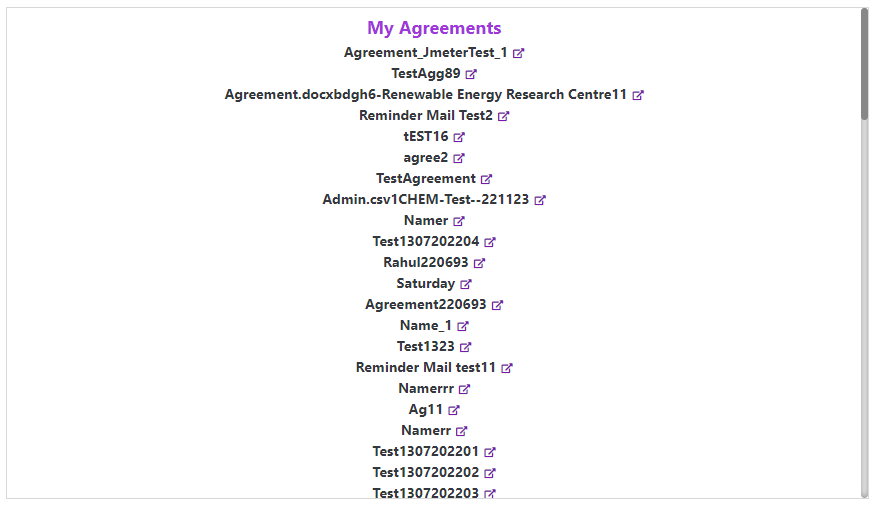
Example 2 — List of records with links
Fetch records of a type and display a clickable list. Each link opens the record's view page in a new tab.
function MyAgreementsWidget(pageContext) {
  const { protrakUtils, protrakComponents } =
    React.useContext(customWidgetContext);
  const { useProtrakApi } = protrakUtils;
  const { Container, Spinner, Text, H2, Box, InstanceLink } = protrakComponents;

  const getAgreements = React.useCallback(
    () => ({
      endpoint: 'instances',
      config: {
        method: 'GET',
        params: { instanceTypeName: 'Agreement', skip: 0, take: 20 },
      },
    }),
    []
  );

  const { state } = useProtrakApi({ requestConfig: getAgreements });

  if (state.isLoading)
    return (
      <Container>
        <Spinner />
      </Container>
    );
  if (state.isError)
    return <Text color="ERROR">Could not load agreements.</Text>;

  return (
    <Container direction="column">
      <H2 color="SECONDARY_LIGHT">My Agreements</H2>
      <Box direction="column">
        {state.data?.items.map((item) => (
          <Box key={item.id} style={{ padding: '0.4rem 0' }}>
            <InstanceLink
              typeName={item.instanceTypeName}
              instanceId={item.id}
              targetLayout="view"
              openInNewTab
              showPopOutIcon
            />
          </Box>
        ))}
      </Box>
    </Container>
  );
}
Preview:
Example 3 — Instruction panel (static content)
For help text, onboarding steps, or upload instructions — no API needed.
function UploadInstructionsWidget(pageContext) {
  const { protrakComponents } = React.useContext(customWidgetContext);
  const { Box, H3, H4 } = protrakComponents;

  const baseURL = window.location.origin;

  return (
    <Box direction="column">
      <H3>Hi {pageContext.userData.name},</H3>
      <H4>Follow the steps below to upload a Scanned Agreement:</H4>
      <ul>
        <li>
          <H4>
            Open Agreements from the sidebar, or{' '}
            <a href={`${baseURL}/Agreement/dashboard`} target="_blank">
              click here
            </a>
          </H4>
        </li>
        <li>
          <H4>Click the Edit icon and upload your Final Agreement file.</H4>
        </li>
      </ul>
    </Box>
  );
}
Tips
- Home widgets are only visible on the home page, so keep them focused on high-level information or navigation.
- Use
pageContext.userData.rolesto show or hide content based on the user's role. - Use
pageContext.settings.dateTimeFormatto format dates in the tenant's preferred format. - For deep-dive patterns, see Branding & Home Widget Pattern.