View Layout Widget
A View Layout widget appears as a section or tab on a record's view page. It is the most common type of custom widget.
The widget receives the current record's attribute values, instance ID, and a set of functions to read and update the record.
pageContext shape
Source: ViewWidgetRenderer.jsx
{
  // Record identity
  instanceType,         // Type name (e.g. "Project")
  instanceId,           // ID of the record being viewed
  instanceDetails,      // Full record object (name, state, lifecycle, allowedOperations, …)

  // Attribute data
  attributeValues,      // { [attrName]: attrObj } — saved values
  editedValues,         // { [attrName]: attrObj } — in-progress edits
  getAttributeWorkingValue, // function(attrName) → edited if pending, else saved

  // Edit integration
  onAttributeEdit,      // function(attrName, attrObj, errorMsg) — push change into the form
  saveInstance,         // function() — trigger save from the widget
  createInstance,       // function() — available for embedded create flows
  saveOperationState,   // { isLoading, isError, data }
  reloadInstanceDetails, // function() — reload the record

  // Layout config
  editMode,             // "None" | "Inline" | "Full"
  layoutConfig,         // Admin view layout configuration
  instanceEditDispatch, // Low-level reducer dispatch (advanced)

  // Permissions
  canConnect,           // boolean — user can link related instances
  allowedOperations,    // Array of Enums.AllowedOperations strings

  // Lifecycle events
  onLinkSuccess,
  onPromoteSuccess,
  onPromoteError,
  isPromoteInProgress,

  // Common (always present)
  settings,
  userData,
}
Example 1 — Display attribute values
Read and display attribute values from the current record.
function ProjectSummaryWidget(pageContext) {
  const { protrakComponents } = React.useContext(customWidgetContext);
  const { Box, Text, H3 } = protrakComponents;

  const title = pageContext.attributeValues['Name']?.textValue ?? '—';
  const budget = pageContext.attributeValues['Budget']?.numericValue ?? 0;
  const status = pageContext.instanceDetails?.state?.name ?? 'Unknown';

  return (
    <Box direction="column" style={{ padding: '1rem' }}>
      <H3>{title}</H3>
      <Text>Budget: {budget.toLocaleString()}</Text>
      <Text>Status: {status}</Text>
    </Box>
  );
}
Example 2 — Edit an attribute and save
The widget reads an attribute, lets the user modify it, and syncs the change back to the layout's save mechanism.
function NotesEditorWidget(pageContext) {
  const { protrakComponents } = React.useContext(customWidgetContext);
  const { Box, TextBox, Button, ButtonEnums } = protrakComponents;

  const saved = pageContext.attributeValues['Notes']?.textValue ?? '';
  const [draft, setDraft] = React.useState(saved);

  const handleSave = () => {
    pageContext.onAttributeEdit(
      'Notes',
      {
        name: 'Notes',
        type: 'Text',
        canUpdate: true,
        textValue: draft,
      },
      ''
    );
    pageContext.saveInstance();
  };

  return (
    <Box direction="column" style={{ padding: '1rem', gap: '0.5rem' }}>
      <TextBox value={draft} onEdit={setDraft} />
      <Button
        onClick={handleSave}
        appearance={ButtonEnums.Appearance.Primary}
        text="Save Notes"
        disabled={pageContext.saveOperationState.isLoading}
      />
    </Box>
  );
}
Example 3 — Fetch additional data and display it
Fetch related records from the API to show alongside the current record.
function RelatedTasksWidget(pageContext) {
  const { protrakUtils, protrakComponents } =
    React.useContext(customWidgetContext);
  const { useProtrakApi } = protrakUtils;
  const { Container, Spinner, Text, Box } = protrakComponents;

  const getTasks = React.useCallback(
    () => ({
      endpoint: 'instances',
      config: {
        method: 'GET',
        params: {
          instanceTypeName: 'Task',
          'filter[ParentProject]': pageContext.instanceId,
          skip: 0,
          take: 50,
        },
      },
    }),
    [pageContext.instanceId]
  );

  const { state } = useProtrakApi({ requestConfig: getTasks });

  if (state.isLoading)
    return (
      <Container>
        <Spinner />
      </Container>
    );
  if (state.isError) return <Text color="ERROR">Failed to load tasks.</Text>;

  return (
    <Box direction="column">
      {state.data?.items.map((task) => (
        <Text key={task.id}>
          {task.name} — {task.state?.name}
        </Text>
      ))}
    </Box>
  );
}
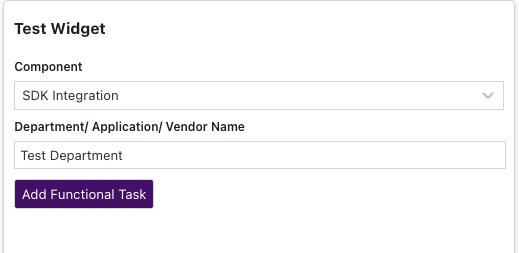
Preview:
How onAttributeEdit works
onAttributeEdit keeps the widget's changes in sync with the rest of the layout. When you call it, the value appears in other groups/sections on the same page as if the user had edited it there.
pageContext.onAttributeEdit(
  'AttributeName', // Attribute name (must match exactly)
  {
    name: 'AttributeName',
    type: 'Text', // Attribute type
    canUpdate: true,
    textValue: 'new value', // Use the correct value field for the type
  },
  '' // Error message string, or '' if none
);
After calling onAttributeEdit, call pageContext.saveInstance() to trigger the actual save, or let the user click the standard Save button on the layout.
See also
- Edit Layout Widget — the same model, but with editing enabled by default
- View Layout Widget (Relation grid) — render a relation widget on a view page
- Multi-Attribute Calculator Pattern — update multiple attributes at once