Edit Layout Widget
An Edit Layout widget appears as a section or tab on a record's edit page. It is similar to the View Layout widget, but it is expected to be interactive — the user comes here to make changes.
pageContext shape
Source: EditWidgetRenderer.jsx
{
  // Record identity
  instanceType,
  instanceId,
  instanceDetails,      // Full record object

  // Attribute data
  attributeValues,      // { [attrName]: attrObj } — saved values
  editedValues,         // { [attrName]: attrObj } — in-progress edits
  getAttributeWorkingValue, // function(attrName) → edited if pending, else saved

  // Edit integration
  onAttributeEdit,      // function(attrName, attrObj, errorMsg) — sync to form
  saveInstance,         // function() — trigger save
  saveOperationState,   // { isLoading, isError, data }
  reloadInstanceDetails, // function() — reload the record

  // Layout config
  editMode,             // "Inline" | "Full"
  layoutConfig,
  instanceEditDispatch, // Low-level reducer dispatch (advanced)

  // Permissions
  canConnect,
  allowedOperations,    // Array of Enums.AllowedOperations strings

  // Lifecycle events
  onLinkSuccess,
  onPromoteSuccess,
  onPromoteError,
  isPromoteInProgress,

  // Common (always present)
  settings,
  userData,
}
Note: Edit Layout does not include
createInstance(use Create Layout for that).
How editing works
Call onAttributeEdit any time the user changes a value in your widget. This keeps your widget in sync with the rest of the form. When the user clicks the layout's Save button, or you call saveInstance(), all changes (including yours) are saved together.
pageContext.onAttributeEdit(
  'AttributeName',
  {
    name: 'AttributeName',
    type: 'Text',
    canUpdate: true,
    textValue: 'new value',
  },
  '' // error message, or '' if none
);
Example 1 — A simple text field that syncs with the form
The widget shows a plain text input. When the user types, it calls onAttributeEdit so the value is included in the save.
function DescriptionEditorWidget(pageContext) {
  const { protrakComponents } = React.useContext(customWidgetContext);
  const { Box, Label, TextBox } = protrakComponents;

  const saved = pageContext.attributeValues['Description']?.textValue ?? '';
  const [value, setValue] = React.useState(saved);

  const handleChange = (newValue) => {
    setValue(newValue);
    pageContext.onAttributeEdit(
      'Description',
      {
        name: 'Description',
        type: 'Text',
        canUpdate: true,
        textValue: newValue,
      },
      ''
    );
  };

  return (
    <Box direction="column" style={{ padding: '1rem' }}>
      <Label>Description</Label>
      <TextBox value={value} onEdit={handleChange} />
    </Box>
  );
}
Example 2 — Add items to a JSON list attribute
The widget manages a list stored as JSON in a single text attribute. Each time the user adds an item, it calls onAttributeEdit with the updated JSON.
function TaskListWidget(pageContext) {
  const { protrakComponents } = React.useContext(customWidgetContext);
  const { Box, Button, ButtonEnums, TextBox, Label } = protrakComponents;

  const saved = JSON.parse(
    pageContext.attributeValues['TaskList']?.textValue || '[]'
  );
  const [tasks, setTasks] = React.useState(saved);
  const [newTask, setNewTask] = React.useState('');

  const addTask = () => {
    const updated = [...tasks, { name: newTask }];
    setTasks(updated);
    setNewTask('');
    pageContext.onAttributeEdit(
      'TaskList',
      {
        name: 'TaskList',
        type: 'Text',
        canUpdate: true,
        textValue: JSON.stringify(updated),
      },
      ''
    );
  };

  return (
    <Box direction="column" style={{ padding: '1rem', gap: '0.5rem' }}>
      {tasks.map((t, i) => (
        <div key={i}>{t.name}</div>
      ))}
      <TextBox value={newTask} onEdit={setNewTask} />
      <Button
        text="Add Task"
        onClick={addTask}
        disabled={!newTask}
        appearance={ButtonEnums.Appearance.Primary}
      />
    </Box>
  );
}
Preview:
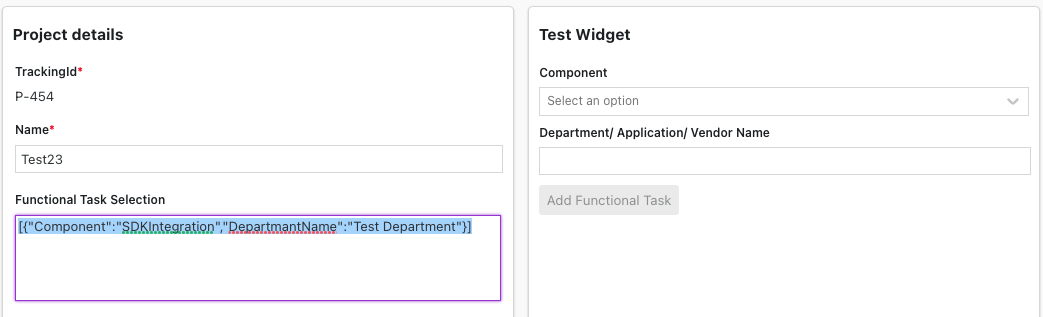
Example 3 — Dropdown populated from the type definition
Fetch picklist options from the type definition and render a dropdown.
function ComponentSelectorWidget(pageContext) {
  const { protrakUtils, protrakComponents } =
    React.useContext(customWidgetContext);
  const { useProtrakApi } = protrakUtils;
  const { Box, Dropdown, Label, Spinner } = protrakComponents;

  const [selected, setSelected] = React.useState('');

  const getTypeOptions = React.useCallback(
    () => ({
      endpoint: 'types/Task',
      config: { method: 'GET' },
    }),
    []
  );

  const { state } = useProtrakApi({ requestConfig: getTypeOptions });

  if (state.isLoading) return <Spinner />;

  const options =
    state.data?.attributes.find((a) => a.attributeName === 'Component')
      ?.options ?? [];

  const picklistOptions = options.map((o) => ({
    label: o.displayName,
    value: o.name,
  }));

  const handleChange = (val) => {
    setSelected(val);
    pageContext.onAttributeEdit(
      'Component',
      {
        name: 'Component',
        type: 'Picklist',
        canUpdate: true,
        textValue: val?.value,
      },
      ''
    );
  };

  return (
    <Box direction="column" style={{ padding: '1rem' }}>
      <Label>Component</Label>
      <Dropdown
        defaultValues={selected}
        picklistOptions={picklistOptions}
        onValueChange={handleChange}
      />
    </Box>
  );
}
Tips
- Always pass the correct value field for the attribute type (e.g.
textValuefor Text,numericValuefor Numeric). - Do not call
saveInstance()on every keystroke — let the user control when to save, or save after a deliberate action. - If the save button shows a loading spinner (
saveOperationState.isLoading), disable your Save button too. - For deep-dive patterns, see: