Edit Relation Widget
An Edit Relation widget is placed in a container of an Edit Relation form. It appears wherever that form is shown: the Edit Relation popup on a relation widget row, and the link popup of a Link option or a Link Related Instance action.
Use it when the built-in relation attribute fields aren't enough — for example, to limit the roles a user can pick based on the project, or to show extra information about the records being linked.
An Edit Relation form edits the link between two records, not either record. So the form keys in pageContext (attributeValues, editedValues, getAttributeWorkingValue, onAttributeEdit) work exactly as they do for an Edit Layout widget — with the relation as the record. The two linked records come separately, as parentInstance and relatedInstances.
pageContext shape
Source: relationWidgetContext.js
{
  // Form integration — the relation is the record
  attributeValues,          // { [attrName]: attrObj } — saved relation attribute values; {} while linking
  editedValues,             // { [attrName]: attrObj } — the values Save / Link will send
  getAttributeWorkingValue, // function(attrName) → edited value if changed, else the saved value
  onAttributeEdit,          // function(attrName, attrObj, errorMsg) — sync to the form
  layoutConfig,             // The Edit Relation form's configuration

  // Which popup the form is shown in
  mode,                     // 'EditRelation' | 'LinkRelation'

  // The relation
  relation: {
    relationId,             // null while linking — the relation doesn't exist yet
    relationTypeName,       // e.g. 'ProjectToResource'
    direction,              // 'To' | 'From' — as seen from parentInstance
    cardinality,
    relationAttributes,     // Definitions: attributeName, attributeType, label,
                            // isRequired, isMultiselect, options
  },

  // The two ends of the relation
  parentInstance,           // The record the relation is edited or linked from
  relatedInstances,         // The record(s) on the other end

  // Common (always present)
  settings,
  userData,
}
The instance-form keys of other form targets (instanceId, instanceType, saveInstance, createInstance, allowedOperations, …) are not passed — the popup edits a relation, not a record.
The two popups
The same form, and so the same widget, can be shown by two popups. Use mode to tell them apart:
'EditRelation' | 'LinkRelation' | |
|---|---|---|
| Opened from | Edit Relation action on a relation row | A Link option, or a Link Related Instance action |
relation.relationId | The relation being edited | null |
attributeValues | The relation's saved values | {} |
relatedInstances | One record | Every selected record — the values entered apply to all of them |
The linked records
parentInstance and each entry of relatedInstances have the same shape as other records widgets receive, such as userData.profile:
{
  id,
  name,
  instanceTypeName,
  state,        // { name, displayName, ... } — null when not loaded
  attributes,   // [attrObj] — only what the popup already loaded
}
parentInstance is the record the user is on: the record showing the relation widget, or the dashboard row the link starts from. relatedInstances are the records on the other end.
attributes holds only what the popup had already loaded — it is not always the full record:
| Record | attributes contains |
|---|---|
parentInstance, shown on its own page | Every attribute of the record |
parentInstance, when linking from a dashboard row | Nothing — state is null too |
relatedInstances, in the Edit Relation popup | The attributes shown as columns in the relation widget |
relatedInstances, in a link popup | The attributes shown as columns in the link popup |
Check for the attribute before using it, and fetch the record by id when you need something that isn't there.
Source and destination
direction tells you which end of the relation type the parent record is on. With 'To' the parent is the relation's source; with 'From' it is the destination:
const { relation, parentInstance, relatedInstances } = pageContext;
const parentIsSource = relation.direction === 'To';
const sources = parentIsSource ? [parentInstance] : relatedInstances;
const destinations = parentIsSource ? relatedInstances : [parentInstance];
For a ProjectToResource relation, sources[0] is always the Project — whether the popup was opened from the Project's page or the Resource's.
How editing works
Call onAttributeEdit whenever the user changes a relation attribute in your widget. The value is included when the user clicks Save (Edit Relation) or Link. In a link popup it is written to every link created from the selection.
pageContext.onAttributeEdit(
  'Role',
  {
    name: 'Role',
    type: 'Picklist',
    canUpdate: true,
    arrayValue: ['Lead'],
  },
  '' // error message, or '' if none
);
A non-empty error message blocks Save / Link until your widget clears it.
Read a relation attribute with getAttributeWorkingValue — it returns the user's edit if there is one, otherwise the saved value, even for attributes that aren't on the form.
Registration
{
  "name": "ProjectRolePicker",
  "displayName": "Project Role Picker",
  "target": "EditRelation",
  "description": "Limits the roles offered to those the project allows"
}
In Schema → Widgets, choose EditRelation as the widget's Target. The code editor then starts with a sample that lists the pageContext keys this target provides.
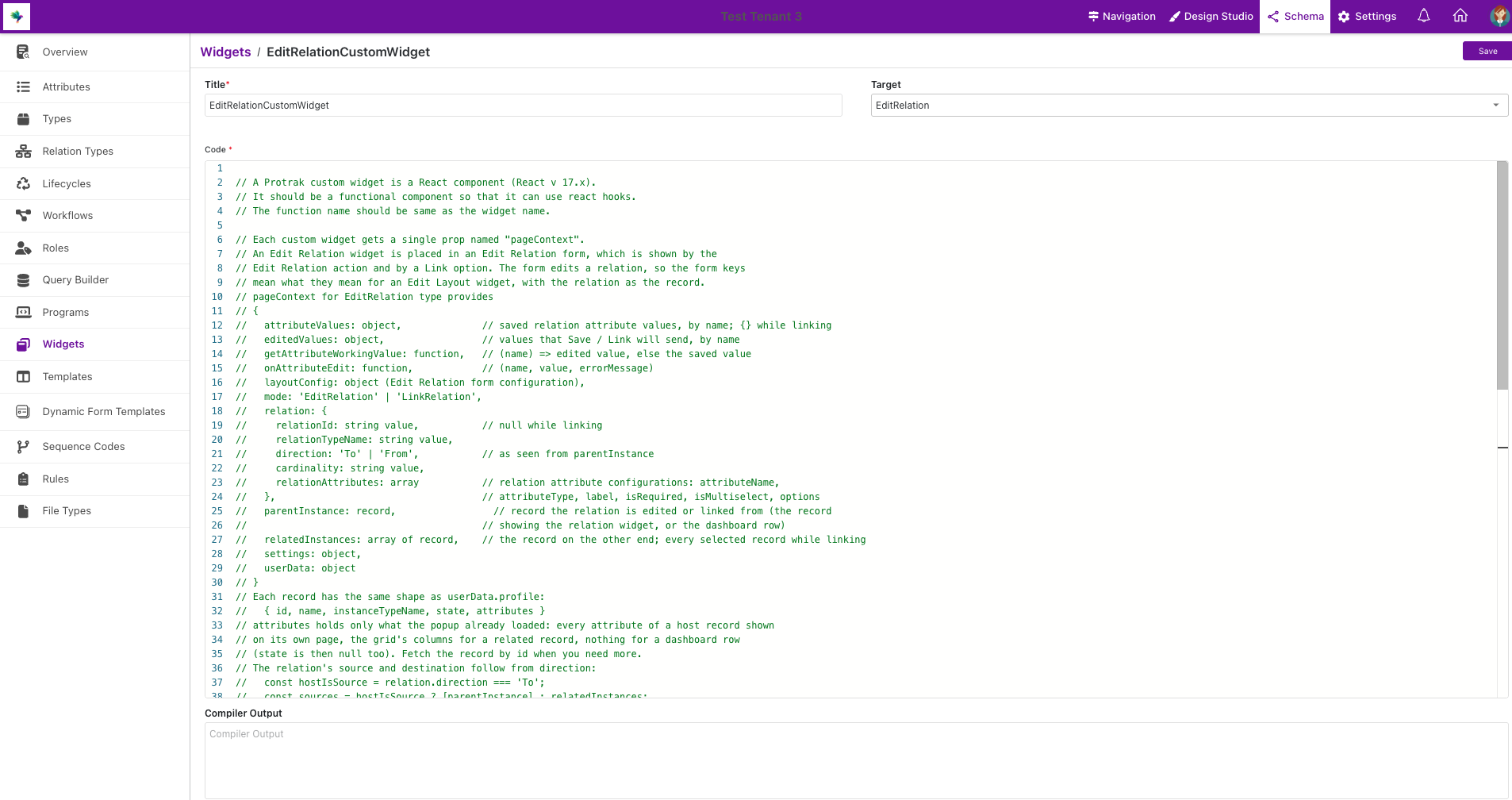
- An
EditRelationwidget can only be added to an Edit Relation form. Other forms reject it when they are saved. - An Edit Relation form accepts
EditRelationandAnywidgets. - The widget must be Published, and the function name must match the widget Title exactly.
Example 1 — Limit the roles to those the project allows
The widget edits the Role relation attribute, but only offers the roles listed in the Project's AllowedRoles attribute.
function ProjectRolePicker(pageContext) {
  const { protrakComponents } = React.useContext(customWidgetContext);
  const { Box, H4, Picklist } = protrakComponents;
  const {
    relation,
    parentInstance,
    relatedInstances,
    getAttributeWorkingValue,
    onAttributeEdit,
  } = pageContext;

  const roleField = relation.relationAttributes.find(
    (a) => a.attributeName === 'Role'
  );
  if (!roleField) {
    return <H4>Role is not an attribute of this relation.</H4>;
  }

  // The Project is the relation's source, whichever page the popup was opened from.
  const project =
    relation.direction === 'To' ? parentInstance : relatedInstances[0];
  const allowedRoles =
    project?.attributes.find((a) => a.name === 'AllowedRoles')?.arrayValue;

  const currentRoles = getAttributeWorkingValue('Role')?.arrayValue || [];

  // Keep roles that are already selected, so values saved earlier stay visible.
  const options = allowedRoles
    ? roleField.options.filter(
        (o) => allowedRoles.includes(o.name) || currentRoles.includes(o.name)
      )
    : roleField.options;

  return (
    <Box direction="column" style={{ padding: '1rem' }}>
      <H4>{roleField.label || 'Role'}</H4>
      <Picklist
        isMultiselect={roleField.isMultiselect}
        fieldValue={currentRoles}
        options={options}
        onEdit={(arrayValue) =>
          onAttributeEdit(
            'Role',
            { name: 'Role', type: 'Picklist', canUpdate: true, arrayValue },
            roleField.isRequired && !arrayValue?.length ? 'Role is required' : ''
          )
        }
      />
    </Box>
  );
}
If AllowedRoles isn't loaded — for example, the popup was opened from a Resource's page and the Project is a row whose grid doesn't show that column — the widget offers every role. Fetch the Project by project.id if you need the value in every case.
Example 2 — Show what the values will apply to
A read-only summary that adapts to the popup it is shown in.
function RelationSummary(pageContext) {
  const { protrakComponents } = React.useContext(customWidgetContext);
  const { Box, Text } = protrakComponents;
  const { mode, parentInstance, relatedInstances } = pageContext;

  const names = relatedInstances.map((r) => r.name).join(', ');

  return (
    <Box style={{ padding: '0.5rem 1rem' }}>
      <Text>
        {mode === 'LinkRelation'
          ? `These values will apply to ${relatedInstances.length} record(s) linked to ${parentInstance.name}: ${names}`
          : `Editing the link between ${parentInstance.name} and ${names}`}
      </Text>
    </Box>
  );
}
Tips
- Always pass the correct value field for the attribute type (e.g.
arrayValuefor Picklist,numericValuefor Numeric). - Include
nameandtypein every value you pass toonAttributeEdit. - Don't assume a record attribute is present in
attributes— check, and fetch the record when you need it. - Keep options that are already selected when you filter a picklist, so earlier values don't disappear.
- Form setup: Edit Relation Forms. Where the form is shown: Edit Relation Action & Link Popup.