Compact Lifecycle Widget
The Compact Lifecycle widget shows where a record stands in its lifecycle — right on the View or Edit form, without opening the full Lifecycle tab. It lists every state the record's type can go through, in order, and marks which ones are done, which one is current, which were skipped, and which are still ahead.
Add it once, and every user who opens the record sees its progress at a glance.
What you can do
- Let users see a record's progress without switching to the Lifecycle tab
- Show the full picture — every state, in order — not just where the record has been
- Pick the look that fits your form: a compact row of dots and labels, or a bold row of coloured chevrons
- Show it on both View and Edit forms
Compact Lifecycle always shows every state, in the order they were authored — never just the states a record happened to pass through. If a record skipped a state (its path went around it), that state still shows, marked as skipped. Nothing is ever hidden.
How to configure
- Open Design Studio → Forms and select (or create) a View or Edit form for a type that has a lifecycle.
- From Standard Widgets, drag Compact Lifecycle onto the form.
- Open its settings (⚙) and choose a Display Mode:
- Stepper — a row of small circles and labels.
- Ribbon — a row of bold, coloured chevrons.
- Save.
That's the only setting. There's nothing else to configure — the widget reads the record's own lifecycle and history automatically.
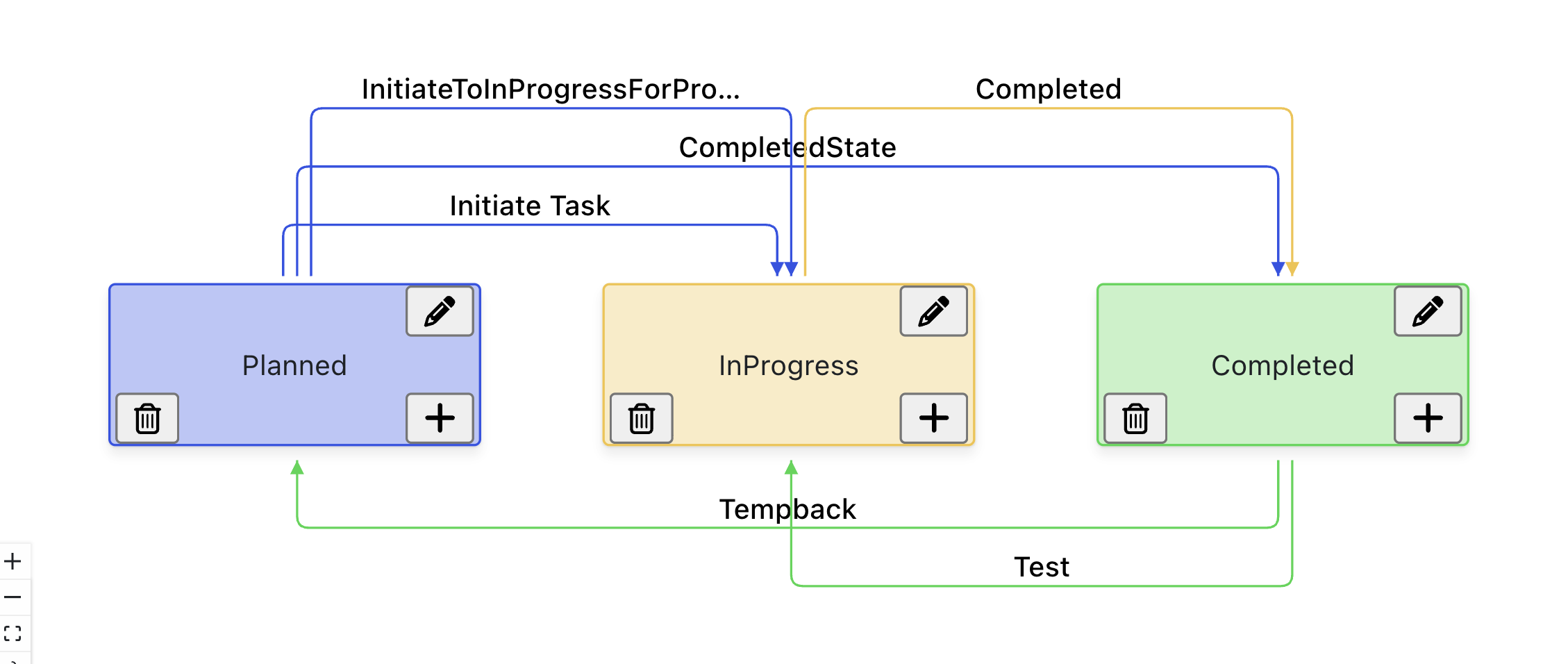
The screenshots below all use the same example lifecycle — Planned Test → In Progress → Completed, coloured blue, amber, and green in Admin → Schema → Lifecycles:
Stepper mode
Each state is a small circle with a checkmark, a slash, or nothing in it, followed by its name.
| Look | Meaning |
|---|---|
| Green circle, check | The record has passed through this state |
| Circle with a coloured ring | This is the record's current state |
| Grey circle, slash | This state was skipped — the record's path went around it |
| Plain grey circle | Still ahead — the record hasn't reached this state yet |
In progress, nothing skipped — the record has passed through the first state, is currently on the second, and the third is still ahead:

A state was skipped — the record went straight from Planned Test to Completed, so In Progress shows as skipped, not as done or ahead:

Fully done — every state up to the current one is marked complete:

Ribbon mode
Each state is a coloured chevron segment, one after another, reading like a progress bar.

Ribbon segments for states the record has actually reached use the lifecycle's own authored state colour (the same colour set on the state in Admin → Schema → Lifecycles, and the same colour the full Lifecycle graph uses) — so the two views always agree. If a state has no authored colour, it falls back to the same green/amber Stepper uses, so it's never left looking plain. Skipped and upcoming states always stay a neutral grey — they haven't earned a colour yet.
Behavior
- Works on both View and Edit forms. It's not offered on Create forms — a brand-new record has no history yet, so there's nothing to show.
- If a name is too long to fit, it's shortened with "…" — hover over it to see the full name.
- If there are more states than fit on screen, arrows appear on either side to scroll through them. Nothing is ever cut off or hidden — you can always reach every state.
- If the record's type has no lifecycle, the widget simply doesn't show anything — it doesn't leave an empty box behind.
- Branching or looping lifecycles (where a state can be reached more than one way) aren't shown compactly here — open the full Lifecycle tab for that level of detail. Compact Lifecycle is meant for an at-a-glance summary, not the full map.
Troubleshooting
| Symptom | Likely cause |
|---|---|
| Widget doesn't appear on the form at all | The type has no lifecycle assigned, or the record has no state history yet. |
| A state's name is cut short | Expected — long names truncate. Hover over it to see the full name. |
| Ribbon segments don't use your lifecycle's colours | The state itself has no colour authored on it in Admin → Schema → Lifecycles — the widget falls back to a default green/amber instead. |
| Can't add the widget on a Create form | By design — Compact Lifecycle needs history to show, which a new record doesn't have yet. |
Next Steps
- See the full picture for a record: the Lifecycle tab
- Set a state's colour: Admin → Schema → Lifecycles
- Build the rest of a View or Edit form: Forms