Column Operations
This section covers all column-related functionality in the Worksheet widget, including filtering, sorting, resizing and column management.
Column Features
Column Display
- Visibility Control: Show or hide columns based on field configuration
- Column Headers: Customizable headers with descriptive labels
- Column Order: Arrange columns in logical sequence in configuration
- Column Width: Configuration to set width for columns or to auto-resize all columns to fit container width
- Column Manual Resizing: Drag column borders to adjust width
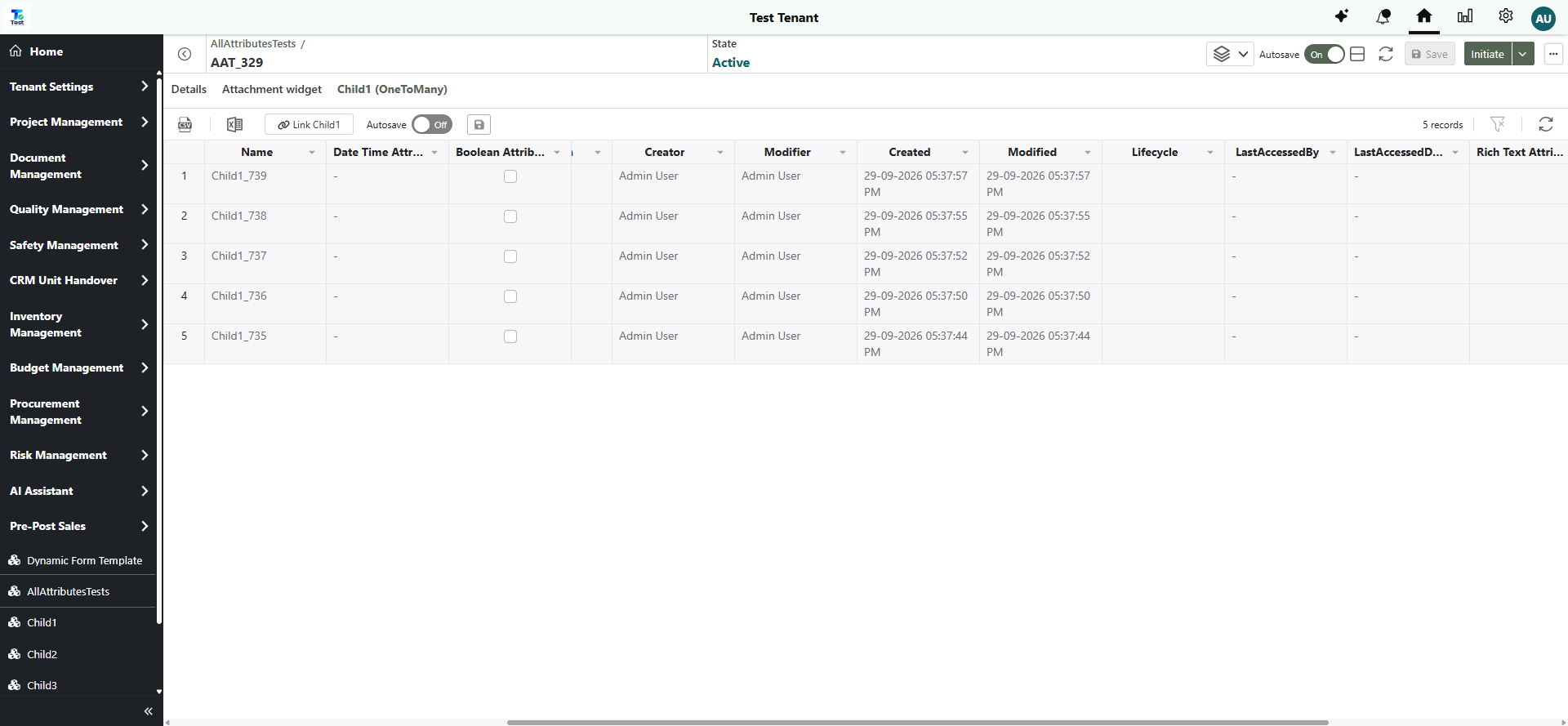
- Frozen Columns: Columns configured as frozen stay fixed on the left while the other columns scroll
Frozen Columns
- Fixed on the Left: Frozen columns and row numbers stay in place when scrolling horizontally; at least one column always scrolls
- Hiding a Frozen Column: The remaining frozen columns stay fixed; the next column does not move into the frozen area. A hidden frozen column keeps its place, and showing it again brings it back frozen
- Header Groups: A group title that spans frozen and scrolling columns shows over the frozen part only
Filtering and Sorting
Column Filtering
- Filter by Condition: Apply conditional filters (equals, contains, greater than, etc.)
- Filter by Value: Select specific values from a list
- Multiple Filters: Apply filters to multiple columns simultaneously
- Filter Indicators: Visual indicators on column headers when filters are active
- Clear Filters: Quick option to remove all applied filters
Sorting Options
- Single Column Sort: Click column headers to sort data in ascending or descending order
- Multi-column Sort: Sort by multiple columns with priority order
Filter and Sort Limitations
- Filtering and sorting are disabled when row reordering is enabled
Best Practices for Column Management
- Logical Order: Arrange columns in workflow sequence with essential columns first
- Appropriate Width: Size columns based on typical content and group related columns
- Hide Unnecessary: Reduce visual complexity by hiding unused columns
- Efficient Data Types: Choose appropriate data types for optimal performance
- Clear Headers: Use descriptive, user-friendly column names with consistent formatting
- Limit Active Filters: Avoid too many simultaneous filters for better performance
Troubleshooting
Need Help? For common issues and solutions related to column operations, see the Troubleshooting Guide.