Toolbar and Context Menu
This section explains all the menu options, context menus, and action buttons available in the worksheet widget.
Toolbar Options

Save Operations
- Save Button: Manually save all pending changes with spinning indicator and success/error feedback
- Auto-save Toggle: Enable/disable interval-based automatic saving every few seconds (recommended for data protection)
- Change Detection: Only saves when actual changes are detected
Link Records
- Link Existing Records: Button to link existing instances to the worksheet
- Requires 'search' link option enabled in worksheet configuration
- User must have Link permission from lifecycle
- Button label is configurable based on setup
Export Functions
- Export to CSV: Generates csv file with visible data respecting configured filters, headers & initiates file downloading
Record Count
- Record Count Display: Shows "Showing X of Y records" format, updates with filter changes
Clear Filters
- Reset All Filters: Clear all applied column filters and restore full dataset view
Data Refresh
- Reload Button: Refresh data from server, clears unsaved changes (with warning)
Data Timestamp
- Last Modified Display: Displays the timestamp of the most recent worksheet data update after successful save operations
Context Menu Options
Access context menus by right-clicking on cells or headers of the worksheet:
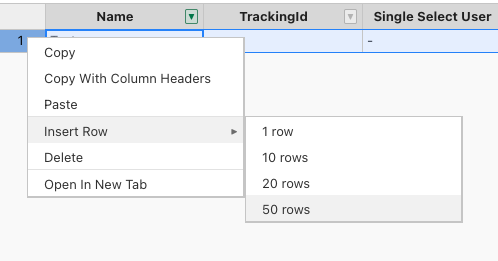
Row Context Menu
- Insert Row Below: Add new row with default values
- Insert Multiple Rows: Add several rows at once via context menu
- Delete Selected Rows: Remove selected rows with confirmation
- Duplicate Row: Create copy of selected row (excludes unique identifiers)
- Copy Row Data: Copy row to clipboard in tab-separated format
For details see Row Operations.
Cell Context Menu
In addition to keyboard shortcuts, the following operations are available via right-click context menu:
- Copy: Copy selected cells with formatting preserved
- Copy with Headers: Copy cells including column headers for external use
- Cut: Move cell data (unavailable for read-only cells)
- Paste: Insert clipboard data with validation and format conversion
- Open in New Tab: Open selected record in new browser tab (available when right-clicking on row header)
For details, see Cell Features.
Column Operations
Click the dropdown arrow beside column titles to access filtering options, or click column titles to access sorting options:
Filtering Options
- Column Filter: Apply filters to specific columns
- Clear Filter: Remove column-specific filters (keeps other filters active)
- Filter Indicator: Shows highlighted filter icon when filters are applied
Sorting Options
- Sort Ascending: Sort column data A-Z or low to high
- Sort Descending: Sort column data Z-A or high to low (can be combined with filtering)
For details, see Column Operations.
Troubleshooting
Need Help? For common issues and solutions related to menu operations, see the Troubleshooting Guide.